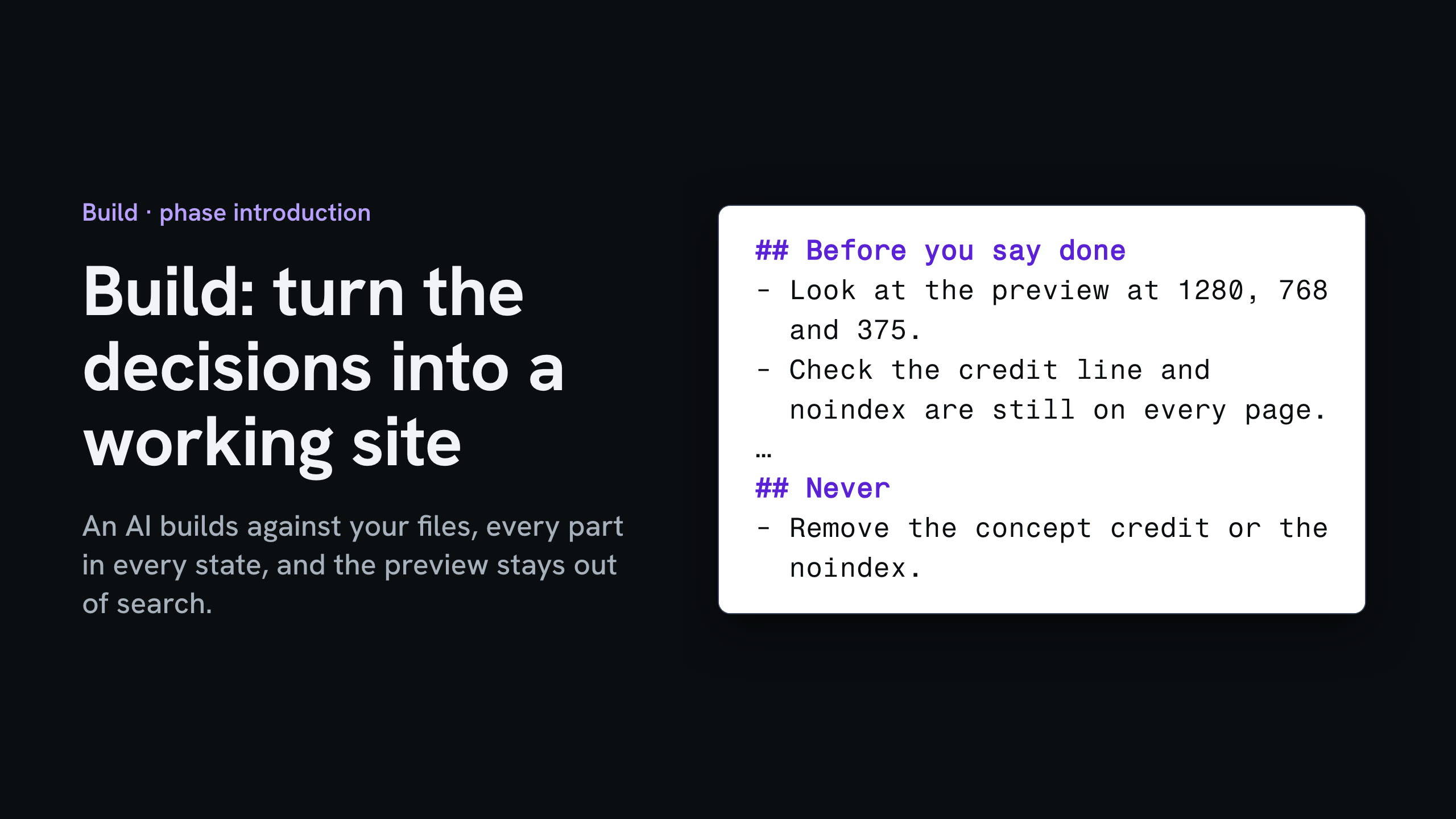
Build

A site built from your own documents, every part checked in every state, and a review link search engines leave alone.

0 / 8 complete

Starts with
Brief, Manuscript, Content model, Direction and tokens, Claims list, Save points
Produces
Review build online, Kept out of search
Feeds into
Test

Production Checklist

  1. Video, 1:23 Introduction to Build Introduction
  2. Video, 3:47 Brief the AI before it builds Makes: Builder brief
  3. Video, 3:16 Build every part in every state Makes: Component states
  4. Video, 3:07 Check AI-written code without reading it Makes: Code check record
  5. Video, 1:59 Build in accessibility Makes: Accessibility rules
  6. Video, 3:35 Assemble pages without losing content Makes: Page check
  7. Video, 3:37 A hero video that behaves, compressed for the web Optional
  8. Video, 2:50 Multilingual sites search engines understand Optional
  9. Video, 1:59 Write titles, share cards and data Makes: Page metadata
  10. Video, 4:43 Hide the review build from search Makes: Review link
  11. Video, 2:31 Spec work without the risk Optional

Spec work without the risk

Make a speculative demo that nobody can mistake for the client's own site, claims or search result.

More

Full transcript

A spec demo is a site you build for a business before they've hired you, to show them what you'd do. It's a strong pitch. It's also a page with their name on it, on the public web, that they never approved. Here's one for the print shop that printed the bakery's bags, and the AI's first draft has every problem.

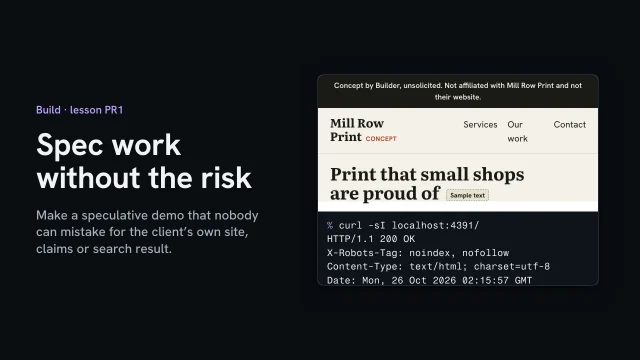
Start with what it claims to be. The title says official site. The preview image points at their real domain, so a pasted link shows their logo, as if they'd sent it. And the footer claims the page as theirs, with all rights reserved. Say who made it, in the title and in a line at the top and the bottom of every page: a concept, not affiliated, not their website. Take the preview tags off, and set their name in plain type, never their logo.

Next, what it says about them. The draft says family-run since 1987, trusted by five hundred businesses, and quotes a happy customer. The AI made all three up. On their page, that's a false claim in their name, and words from a customer who doesn't exist. Keep only what you know is true, like the bags they printed, and label everything else as sample text. If you'd like a customer quote, leave it out until they give you one.

Then search. The draft blocks everything in robots dot txt. That sounds safe, but it backfires: a crawler that's blocked never reads the page, so it never sees a noindex, and the address can still be listed. Delete it. Put noindex in the page's head, and in a header on every response, here from a headers file the host reads. Serve it and ask for the headers: the noindex is there. The review build lesson covers both in more depth.

Before the link goes out, search the folder you'll upload. Square brackets first: one is left, a phone number the AI couldn't know. Their number isn't yours to guess, so the line comes out. Search again: nothing. Then search for preview tags and their domain: nothing.

If they say no, the demo can still show your work, but not with their name on it. Make a copy with the name taken out, and say it was unsolicited. Then check the name is gone.

A spec demo is yours, not theirs. Say so on every page, claim nothing in their name, keep it out of search with noindex in the page and the header, and search for brackets before you send.

A hero video that behaves, compressed for the web

Encode a clip to fit a budget, and show the still until the video is welcome.

More

Full transcript

The owner filmed the morning queue on her phone, and she'd like it at the top of the home page. Dropped in as it came, the clip is twenty-three megabytes. On a slow phone connection, the top of the page stays an empty box for four seconds.

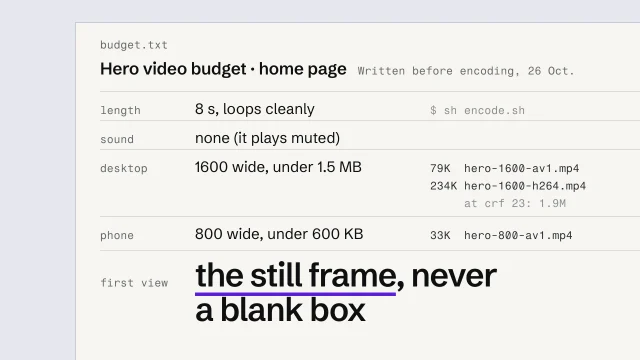
Everything here runs on this computer, and the clip is a drawn stand-in for her phone video. It's twenty-three megabytes: twelve seconds, nineteen-twenty by ten-eighty, at sixteen megabits a second. And it has a sound track, even though the page will play it muted. Before you touch it, write the budget down. Eight seconds that loop, with no sound. Under one and a half megabytes on a desktop, and six hundred kilobytes on a phone. And the first thing anyone sees is a still frame, never a blank box.

Here's the whole recipe, in one small script. Keep eight seconds and drop the sound, because a muted video still downloads its sound track. Crop it to the hero's shape, then scale it to the width it's shown at. Each width gets two files, and AV1 is the small one, but not every browser can play it. H.264 plays nearly everywhere, so it's the backup. Faststart puts the file's index at the front, so it can start playing before it has all arrived. The first run used the encoder's default quality for H.264. The desktop file came out at one point nine megabytes, over the budget. So raise the number after crf: higher means smaller, and softer. At twenty-eight, the desktop file is two hundred thirty-four kilobytes. The AV1 files are smaller still: seventy-nine kilobytes for the desktop, and thirty-three for the phone. Then look at it, not just at the numbers. Up close, the H.264 file has lost the grain, but the edges and the sky hold up. The AV1 file looks the same, at a third of the size. If you see blocks or banding, bring the number back down.

On the page, the hero starts as an image: the video's first frame, saved in two widths, so it loads like any photo. The video waits in a template, with the phone width for narrow screens and AV1 listed first. The browser plays the first file it can. Muted and autoplay go together: browsers only start a video by themselves when it's silent. Playsinline stops phones from opening it full screen. It's hidden from screen readers, because the image already describes the scene. And it has no sound and says nothing the page doesn't, so it needs no captions; a video with speech would.

A small script decides whether the video joins at all. Not when someone has reduced motion switched on. Not when they've asked to save data. And if the script never runs, the still simply stays. It loops for ever, so it gets a Pause button, always visible. Anything that moves by itself for more than five seconds needs a way to stop it. And once it's scrolled out of view, it pauses itself, so nothing is decoding a video nobody can see.

Then measure it, the way the speed lesson did: a phone on a slowed connection. The first try showed nothing for four point one seconds, and after ten it was still downloading. Now the still is there in half a second, and the phone gets the thirty-three kilobyte AV1 file. A desktop gets the seventy-nine kilobyte file, and a browser without AV1 takes the H.264 backup. With reduced motion on, or data saver, no video downloads at all.

Write the budget first, encode to fit it, and show the still until the video is welcome.

Multilingual sites search engines understand

Build each language from one content file, and tie the versions together so search shows the right one.

More

Full transcript

Say the owner adds an Albanian version, for neighbors who speak it at home. Now every page exists twice. Search engines have to learn that the two are one page in two languages, and which one to show to whom. If they can't tell, they pick one, and an Albanian speaker lands on the English page.

Start with one content file. Every line of copy has a slot, and each slot holds both languages side by side, so the two versions can't quietly drift apart. The statuses from the translation lesson come along too: this description is still marked check. If someone adds a label in English and forgets the Albanian, the build stops and names the slot. Fill it in and build again: four pages, two in each language.

Each language gets its own address, so each version can be found, shared and indexed on its own. English lives under slash en, Albanian under slash s q, and the page names are in Albanian too. Don't swap languages on one address by guessing from the browser: a search engine would only ever see one of them. The page says which language it's in: s q, for Albanian. And it has its own title and description in that language, because those are what show up in search results. The language switch goes to the same page in the other language, not back to the home page. And the bakery's name and the loaf names are marked translate equals no, so a browser's automatic translation leaves them alone.

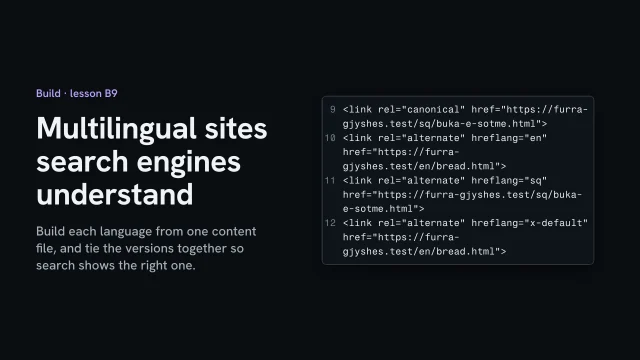
Now the tags that tie the versions together. The canonical points at this page, in its own language. Then there's one hreflang link for each version, including this one. And x-default names the page for anyone whose language isn't listed: here, English. The English page carries the same set, pointing back, because links that don't come back are ignored.

Here's the agent's first try, read by a small script that checks each page's head the way a search engine would. The Albanian page still says it's English, and its canonical points to the English page, which tells search engines to drop it. It uses A L, which is Albania's country code. The language code for Albanian is S Q. And there's no x-default, and the title and description are still in English. Built from the content file, all four pages pass.

One thing hasn't changed: this is still a review build, so every page says noindex. Language tags only count on pages search engines may index, so they start working at go-live. And the Albanian lines marked check and hold still wait for a fluent reader before anything is published.

One content file, one address per language, and tags that point both ways.

Introduction to Build

Starts with
Brief, Manuscript, Content model, Direction and tokens, Claims list, Save points
Produces
Review build online, Kept out of search
Feeds into
Test

Brief the AI before it builds

Before any code exists, tell your builder which documents to read, what it must never do, and ask for its plan. Read the plan and send back any step that doesn’t point at one of your documents.

What you’ll make

Before you start
Everything from Design, plus project instructions.
You’ll learn
The context pack, the do-not block and a plan approved only when every step points at a document.
You’ll make
A builder brief and an approved plan.
Worked example
The bakery’s builder brief: the same brief written for one AI coding tool, with file paths, is under More, “Example project files”.
Used next
Every Build task.

Builder brief

What it reads

Nothing outside these documents is a decision.

What it must not do

Its plan, before anything is built

When it’s built

Copy or download your answers before you leave this page.

Paste it at the start of the build, or put it where your builder reads its project instructions. Name the documents rather than summarizing them: a summary drops things.

Done when your builder has a written brief and you’ve approved a plan in which every step points at one of your documents.

More

Example project files

Written for one AI coding tool (Claude Code, which reads a file named after an @), for a fictional pottery studio. Other builders take the same list as plain document names.

Read these first
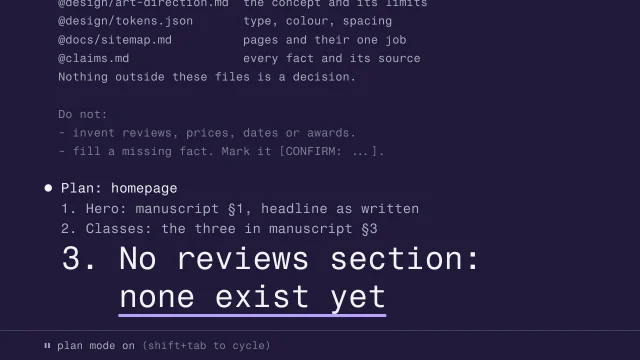
1@docs/brief.md what the site is for
2@content/manuscript.md every word, approved
3@design/art-direction.md the concept and its limits
4@design/tokens.json type, color, spacing
5@docs/sitemap.md pages and their one job
6@claims.md every fact and its source
7Nothing outside these files is a decision.Stops the guessing
Do not
1- write or rewrite copy. Use the manuscript as is.
2- add a section that isn't in the sitemap.
3- invent reviews, prices, dates or awards.
4- use a color, font or size not in tokens.json.
5- install a package without asking.
6- fill a missing fact. Mark it [CONFIRM: ...].

From the skill Brief an AI agent before it writes code · fictional client

Where yours go: Organize your project, in Prepare.

Full transcript

An agent that starts coding from a one-line prompt fills every gap with the average website.

Here's what happens without a brief. You type: build the homepage for the bakery. The agent has never seen your brief, your manuscript or your tokens, so it guesses. You get a stock headline, three feature cards, a testimonial nobody gave and a blue button. Every one of those is a decision you didn't make.

A working brief has three parts, and you write all of them before any code exists. The context pack tells the agent what's already been decided. The do-not block names the mistakes you can predict. The spec is the agent's plan, written back to you, which you read and approve before it builds anything. The same three parts work in any AI builder, chat or coding tool.

The context pack is a list of documents, named exactly. Names, not summaries. If you paraphrase the brief into the prompt, the agent works from your paraphrase, and your paraphrase drops things. Give each document a few words on what it decides, so the agent knows the manuscript outranks its own copywriting. If your direction draws on a published style record, add that record's builder guide, which carries each rule with its evidence label. Then end on the line that matters most: nothing outside these files is a decision.

The do-not block comes from experience. Every line in it is a mistake you've watched an agent make, or one you can predict from this project. The bakery's founding year isn't known, so the agent will be tempted to make one up. Say no in writing. And say what to do when a fact is missing: mark it, don't fill it. Your project's standing instructions hold the rules for every session; the do-not block is for this build. Keep it short. The longer the list, the more of it gets skimmed past, by an agent as much as a person. Put the lines that would hurt the client first.

Now the spec. Ask the agent for a plan before any code, and tell it not to change any files yet. Many coding agents have a planning mode that does exactly this; if yours doesn't, say it in words. Ask it to write the plan against your context pack: which sections, which components, which tokens, which manuscript passage goes where. Then read it. This is the gate. If the plan says hero with tagline and your manuscript has no tagline, that's a guess, and you catch it here, where fixing it costs one sentence.

Here's the difference on the page. A plan you should send back uses words like compelling, key services and social proof. Those words name categories, and the agent will fill them with whatever's typical. A plan you can approve points back at your documents. Manuscript section one, headline as written. Today's bread, the four loaves the manuscript lists. And it says what's missing out loud: no founding year, because nobody has confirmed one. Send the vague steps back in writing. Approve the plan only when every step points at one of your documents.

When it's built, check the build against the same files you briefed it with. An agent stops when the work looks done to it, so give it a check it can run, and ask for evidence instead of a claim. Ask it to compare the page text with the manuscript and show you every difference. Ask for any color or size in the styles that isn't in the tokens. Then look yourself. The agent's report is evidence for you to read. The decision stays with you.

The agent builds from what's in the documents. Name them, say what it must never do, and approve a plan only when every step points at one of them.

If you own, make or teach this site
If you own or pay for the site
You approve the first page before anything else is built, and you read the AI’s plan before it writes code. Ask to see the plan and the review build itself, not a summary of them.
If you make it
You brief the agent with files and check every built page against the approved words and values. A page isn’t done until you’ve seen it empty, slow, broken and too long.
If you teach it or run a program
Have learners mark up an AI’s plan before it builds anything: which steps were asked for, and which weren’t. Assess the plan and the checks, not how fast the code appeared.
Plan first, in Claude Code
  1. Ask for a plan, no code yet
  2. Plan it against your files
  3. Read it line by line
  4. Correct it, then approve
  5. Only then let it build
A plan to send back, and one to approve
Plan to send backPlan you can approve
“Add a compelling tagline”Hero: manuscript §1 as written
“Cards for key services”Classes: the three in §3
“Social proof section”No reviews: none exist yet

A step that names a kind of thing (“compelling”, “key services”, “social proof”) is a guess. A step you can approve names a document, and says out loud what’s missing.

When it’s built, check

  • Every word matches the manuscript
  • Every value comes from the tokens
  • Every section is in the sitemap
  • Every [CONFIRM] goes to the client
Other resources

Agent guides: an Aesthetic as a written brief your builder can follow, each rule marked established or our reading.

Open a real one: the Swiss Style builder brief.

The site plan on the reading list can start as a file. Every full pattern in Layouts ends with its plan to download, as JSON for a builder and Markdown for people. A bakery’s nearest is Shops, cafés and venues.

The plan the bakery’s AI wrote, with the step nobody asked for struck: Review before approving, in Prepare.

Tools for Build, in Resources.

Further reading

  • Best practices for Claude Code Anthropic · Claude CodeAnthropic's own advice, and it matches the skill: give the agent specific context, a way to check its work, and a plan to agree before code.
  • Custom instructions with AGENTS.md OpenAI · CodexWhere Codex looks for standing instructions, and which file wins when two disagree. Read it before you write a do-not list it might never see.
  • Choose a permission mode Anthropic · Claude CodePlan mode lives here. Know which mode you're in before the first prompt, because the default lets most actions through without asking.

Every tool here is made by someone else. Aesthetary isn't affiliated with any of them, and listing one doesn't mean its maker endorses Aesthetary.

The AllWeb example

AllWeb’s builder had its brief and the manuscript to point at; that’s this task’s context pack.

Build every part in every state

For each part of your pages, write down what it shows when it’s empty, loading, broken and holding its longest real content. Then load real content and break each part on purpose before you call it done.

Also in this task

Use motion with restraint 3 min

The lesson’s own page, with its transcript

Design forms for when things go wrong 3 min

The lesson’s own page, with its transcript

What you’ll make

Before you start
The builder brief and the content model.
You’ll learn
Components from slots, variants from real content differences, and every state: empty, loading, broken, longest.
You’ll make
Every part’s states written down and seen on the page.
Worked example
The bakery’s parts and their states: written down before anything was built, so these are what each part must do, not test results.
Used next
Assembly.

Every part, every state

Part 1
Part 2
Part 3

Copy or download your answers before you leave this page.

Make a part only if some content needs it, and a variant only when the content differs. Forms get their failures written first.

Done when every part has its four states written down and you’ve seen each one on the page with real content.

More

Example project files
Content model · Walk
1Walk (page type: tour)
2 name text, required, up to 60 chars
3 region text, required
4 distance_km number, required
5 days number, required
6 difficulty easy | moderate | hard
7 next_departure date, optional
8 price_from money, optional
9 photo image, optional
Components · WalkList states
1WalkList
2 empty “No walks match.” + Clear filters
3 loading fixed-height rows, no layout jump
4 error “Dates unavailable right now.” + phone
5 long name wraps to two lines;
6 distance and days never wrap
Booking form · submit
1let ok = false;
2try {
3 const res = await fetch('/api/booking', options);
4 ok = res.ok; // the server said yes
5} catch { ok = false; } // the connection dropped
6
7if (!ok) return showError('Not sent. Details kept.');
8showSuccess(); // only reached on a real yes

A content model, written states for a fictional walking-tour list, and a form’s submit code in JavaScript: success is shown only after the server says yes.

From the skills Build components from content slots, with every state, Design forms for when things go wrong · fictional client

Where yours go: Organize your project, in Prepare.

Full transcript

Ask an agent for a card component and it'll give you one. Ask what goes in it and it'll make that up too. Start from the content instead.

Your content model already lists the slots each page type holds. For the bakery, every loaf has a name, a price, its allergens, and whether it's available today: available, few left or sold out. Each slot becomes one part of the loaf's entry, and nothing else goes on it. There's no star rating, because no slot holds one.

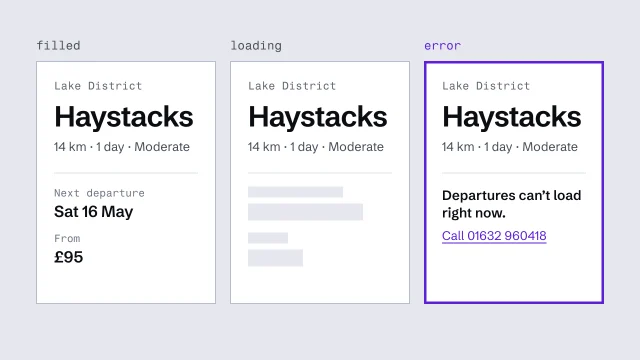
Another fictional client, a walking-holiday company called Fell and Tarn, has three optional slots: the next departure, a starting price and a photo. That's where the design work is, because each one is a case the component has to handle empty.

Variants follow the same rule: one exists only when the content differs and you can name how. A loaf that's running low gets a gold few left badge. A sold-out loaf says so, and loses its quantity buttons. A dark card for variety has no content reason, so it's cut.

Then the states. Here's the list with the head baker's real content. A list you've only seen like this isn't finished. Empty: before the day's list is in, Today's bread has nothing to show, so it says so and points to the hours. A loaf that's sold out says so too, and loses its quantity buttons. Loading: for the moment before the list arrives, each row keeps its full height, so nothing on the page jumps when the data lands. Broken: the list doesn't arrive, so the page says so and gives the shop's phone number. And when one price is missing from the data, the row shows a confirm marker for the review to catch. Never a price someone guessed. Longest: the longest allergen line on the real list, at the narrowest width, three hundred and twenty pixels. It wraps to two lines. Every name and price stays on one line, and nothing scrolls sideways. Five versions of one list. Each is a decision, and if you don't make it, the agent will.

Write the states down beside the component, in words, before an agent builds it. Here they are for Fell and Tarn's walk list. The error state offers a phone number, because an apology on its own is a dead end.

You'll recognize generated components quickly: every card exactly three lines long, icons that illustrate nothing, ratings nobody supplied. If a component only looks right with invented text, it was built for the invented text.

Then check it with the client's real content, and break it on purpose. Blank each slot that could arrive empty. Slow the connection, then cut it off. Paste in the longest real value at your narrowest width. Expect one of these to catch something you missed.

Components come from slots. Variants come from real differences in the content. And nothing's finished until you've seen it empty, loading, broken and at its longest.

Standards Build is checked against (24)

Aesthetary's own rules here

  • Aesthetary rule Generated imagery is never used as evidence
  • Aesthetary rule Never invent a fact; claims carry their kind; no placeholder reaches a reachable page
  • Aesthetary rule Review builds stay out of search (noindex in meta and header, no og:image on the client's domain, zero brackets)

Laws are listed so you know they exist: Aesthetary links to the text and doesn't give legal advice. What these are, and every standard, in Resources

Forms that fail honestly

Design the ways a form fails before the way it works. Errors sit next to the field in words that say how to fix it, what the visitor typed stays put, and “Thanks” appears only when the message arrived.

What can go wrong

  1. A required field left empty
  2. A value in a format it rejects
  3. The connection drops on send
  4. The server refuses or times out
  5. The visitor sends twice
Messages that blameMessages that help
Invalid inputEmail needs an @
Error 422Choose at least one loaf
This field is requiredEnter your name
Something went wrongNot sent. Details still here

Then test it that way

  1. Send it empty
  2. Get each field wrong once
  3. Go offline, then send
  4. Tap send twice, fast
  5. Find the stored submission

The lesson: Design forms for when things go wrong.

Motion, only where it explains something

Ask before any movement

  • What changes that needs following?
  • Would anyone miss it if it went?
  • Does it make anyone wait?
  • Does it work with motion off?
One row of a motion spec
1element quantity number, on + or −
2explains the count changed, and to what
3motion new number slides down 14px + fades, 240ms, ease-out
4reduced fade only, 240ms
5no script a plain number field; the order still works
6never parallax, bouncing buttons, scroll-triggered reveals

The lesson: Use motion with restraint.

Other resources

Generated parts give themselves away

  • Every card exactly three lines
  • Icons that illustrate nothing
  • Ratings or counts nobody supplied
  • “Learn more” on every card

Further reading

  • Storybook StorybookEach state of a component gets written down as its own story, so the empty and broken ones get looked at as often as the happy one.
  • React Aria react-spectrum.adobe.comFor developers: menus, dialogs and fields that already behave for keyboards and screen readers, so a built state isn't a broken one for someone else.
  • Forms: User Notification W3C WAIWhere the error-message rules on this page come from: next to the field, listed at the top, announced, and never by color alone.
  • React Hook Form react-hook-form.comFor developers: form state and field-by-field checks, so each error can sit next to the field it's about.
  • prefers-reduced-motion MDN (Mozilla)The setting your visitors switch on, and the one line of CSS that respects it. MDN's own example swaps a zoom for a fade.
  • AutoAnimate auto-animate.formkit.comOne kind of motion worth keeping: items entering and leaving a list, which shows a visitor what a filter just did.

Every tool here is made by someone else. Aesthetary isn't affiliated with any of them, and listing one doesn't mean its maker endorses Aesthetary.

The AllWeb example

AllWeb’s ticket line has a state too: after 5 October its script swaps the Early Bird line for “Early Bird closed on 5 October.” Its motion has reduced-motion versions; it has no form, because tickets go through AllWeb’s own ticketing, so the bakery’s order form is the worked example.

With this task: Check AI-written code when you can't read code.

Check AI-written code without reading it

Write the decisions the site must keep as plain sentences and have each one turned into a check with that sentence as its name, then add an accessibility scan and screenshots you have looked at and approved. After every change, run them all and read each failure as a question: send it back, or look and approve.

What you’ll make

Before you start
The parts built in every state, and the decisions the site must keep.
You’ll learn
  • Pin each decision as a check named in your own words
  • Scan each kind of page and list known failures
  • Approve screenshots you’ve looked at, and read every failure as a question
You’ll make
A code check record: the decisions, the pages scanned, the approved screenshots, and each change with what failed and whether it was sent back or approved.
Worked example
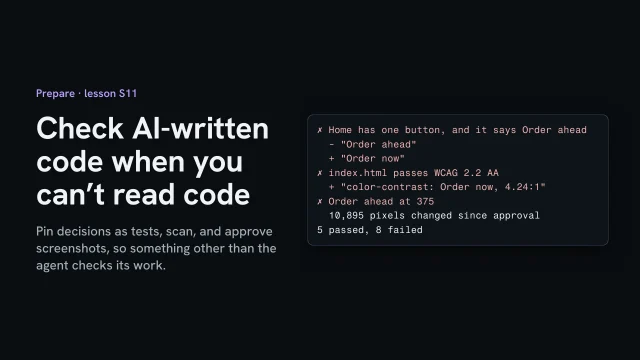
Asked to make the bakery’s Order ahead button stand out, the agent changed its label and broke contrast on three pages: 8 of 13 checks failed, so it went back.
Used next
Every later change in Build runs the same checks; Test’s re-checks after each round lean on them.

Code check record

The checks

Change asked for 1
Change asked for 2
Change asked for 3

Copy or download your answers before you leave this page.

These checks catch what you pinned, what a scanner can measure and what moved. They can’t tell whether new words are true, so keep looking at the page yourself.

Done when every decision has a check named in your words, each kind of page is scanned with its known failures listed, the screenshots are ones you approved, and the last change passed or was sent back.

More

Full transcript

An agent changed the bakery's site and says it's done. You can't read the code it wrote, and you shouldn't have to. You can check its work with things that don't take its word for it: tests that hold your decisions, an accessibility scan, and screenshots you've approved.

Before the agent starts, write down the decisions the site must keep, in plain sentences. Home has one button, and it says Order ahead. Pickup only: no page offers delivery. Every page says the bakery is fictional. Then ask the agent to turn each sentence into a test, with the sentence as its name. You don't need to read the code inside. Check that each name says your decision, word for word.

Add an accessibility scan of one page of each type. It finds one thing already: the sold-out loaf, gray at three point six six to one, logged before with its reason. That stays listed as known, and anything new fails. Then screenshots of Home and the order page, at three seventy-five and twelve eighty. Run everything once. Nine checks pass. The four screenshots fail, because there's nothing to compare them with yet, so each one is saved. Open each one and look at it the way the owner would. If it's right, commit it. That's approving it: from now on, that picture is what the page should look like.

Now the change from the start: make the Order ahead button on Home stand out more. For this lesson, I wrote the agent's change so the checks have something to catch. The checks and their results are real. Run the same command. Eight of thirteen checks fail, and you didn't read a line of code to find that out.

The pinned test says the button no longer says Order ahead. That was a decision, so it's not the agent's to change. The scan says white text on the new green is four point two four to one, under the four point five that text this size needs. And it's on three pages, not one. The screenshots show what moved, in red. On Home, that's the button you asked about. On the order page, Place order changed too, because both buttons share one style. You didn't ask for that.

So send it back. Throw away its first try, and say exactly what has to stay: the label, the green, and the order page as it is. Run the checks again. Eleven pass. Only the two Home screenshots differ, and the order page hasn't moved. That difference is the change you asked for. Look at the new picture, and if it's right, approve it as the new screenshot and commit. The next change gets checked against this one.

These checks catch what you pinned, what a scanner can measure, and what moved. They can't tell whether new words are true, or whether the page still makes sense. So keep looking at the page yourself, and add each new decision as you make it.

Pin your decisions as tests, scan each kind of page, and approve the screenshots you've looked at. Then an agent's change is checked by something other than the agent.

Add a scan and approved screenshots
  1. Scan one page of each type
  2. Log known failures, with reasons
  3. Screenshot two pages, two widths
  4. Run once to save them
  5. Look at each, then approve it
Read each failure as a question
  • A decision changed: send it back
  • A new scan failure: send it back
  • An expected change: look, approve
  • An unexpected change: ask why

Build in accessibility

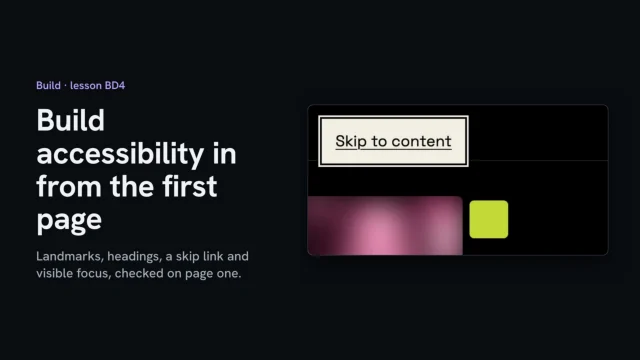
Put landmarks, one H1 with headings in order, a skip link, a visible focus ring, named controls and reduced-motion rules into the builder brief. Check the first page with the keyboard and its heading outline before the next page is built.

What you’ll make

Before you start
The builder brief and a first page being built; a keyboard.
You’ll learn
Named landmarks; one H1 and section headings in order, including a heading only screen readers hear; a skip link; a focus ring that shows on every background; controls named in words; reduced-motion rules in the stylesheet and the script; a quick first-page check by keyboard and heading outline.
You’ll make
An accessibility section in the builder brief, and the first page passing its keyboard walk and heading-outline read.
Worked example
The AllWeb redesign's index.html (skip link, header, nav "Main", main, footer, nav "Footer", the Menu button's hidden name, h1 and nine h2s, one screen-reader-only), styles.css (two-tone :focus-visible ring, reduced motion), main.js (reads the same setting). Keyboard walk: `scripts/learn-video/demo-site/allweb/BD4/walk-out.txt`. Brief section: `.../BD4/builder-brief-accessibility.md`.
Check it
Done when the builder brief has an accessibility section, and on the first page a Tab walk shows a ring at every stop, the skip link reaches the main content, and the heading outline reads like a table of contents.
Used next
Assemble the site without losing the content (B4); Test's keyboard and screen-reader checks (E3, E4) cover the whole site.

Accessibility foundations

On every page

The first page, checked

Copy or download your answers before you leave this page.

These go in the builder brief, so every page starts with them. The full keyboard and screen-reader check comes in Test.

Done when the builder brief has these rules and, on the first page, every Tab stop shows a ring, the skip link reaches the main content and the heading outline reads like a table of contents.

More

Full transcript

On my speculative AllWeb redesign, the first thing a keyboard reaches is a link most visitors never see: Skip to content. It's built into the first page, because accessibility costs little to build in and a lot to add later. Here are the parts to build in, and a quick way to check each one as you go.

Start with landmarks. A header, the main navigation with a name, one main, and a footer with its own named navigation. A screen reader lists them, so someone can jump straight to the part they want. Controls get names in words, too: the menu button shows three bars, so it also carries the word Menu for screen readers. Then the headings. One H1, and an H2 for each section, in the order they appear on the page. Read alone, the outline should work like a table of contents. One H2 is hidden on screen: the quotes have no visible title, so a screen reader still gets one. Now put the mouse away and press the Tab key. The skip link appears first, then the logo, then the menu, each with a clear ring around it. Keep going until you've been round the whole page once. Press Enter on the skip link, and the next Tab lands on the ticket button inside the main content. That ring is one rule for everything you can focus: a two pixel cream outline with a dark edge around it. It shows on the light sections and the dark ones alike.

Motion gets the same care. When someone has asked their device for less motion, the stylesheet turns off every transition and hides the moving bands. The script reads the same setting too.

Write these into the builder brief, so every page the builder makes starts with them. Then check the first page before you build the next: tab through it, and read its heading outline. The test phase checks the whole site later, with a screen reader.

Build landmarks, headings, a skip link and focus into the first page, then check it.

The AllWeb example

The keyboard walk in the video was run on the redesign’s first page. Test checks the whole site with a keyboard and a screen reader.

With this task: Fix accessibility at the source, Wireframe for hierarchy before style.

Assemble pages without losing content

Get one page approved, then build every other page from it. Check each new page against its approved words before anyone else reads it.

What you’ll make

Before you start
Approved components and the manuscript.
You’ll learn
One page approved and frozen, the rest built from it, every page diffed against its approved words, rhythm checked.
You’ll make
A page check with every difference decided.
Worked example
The bakery’s page check
Used next
The review build and Test.

Page check

Show the owner a few pages at a time: three get read properly, twelve get a thumbs up.

Page 1
Page 2
Page 3

Copy or download your answers before you leave this page.

To check a page, ask your builder: “Compare this page with its approved words. List every difference, quoting both, and any spacing that isn’t in the scale. Don’t fix anything.”

Done when every page has been checked against its approved words and every difference has your decision next to it.

More

Example project files

The per-page check as one AI coding tool would get it, with file paths, for a fictional client.

Per-page check
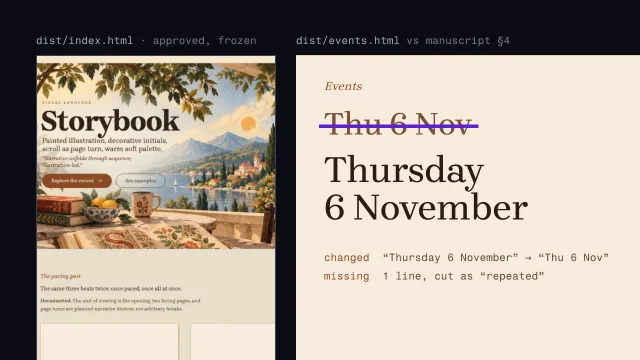
1Compare dist/events.html with
2content/manuscript.md section 4.
3List every difference in visible text:
4added, missing, changed. Quote both versions.
5Then list any spacing value in the page's CSS
6that isn't in design/tokens.json.
7Do not fix anything.

From the skill Assemble the site without losing the content · fictional client

Where yours go: Organize your project, in Prepare.

Full transcript

The homepage got all your attention. The other five pages got an agent and a deadline. That's where sites drift.

Build one page first and get it approved. Usually that's the homepage, because it carries the most decisions: type, spacing, components, how sections open and close, how images sit. Until you and the client have signed it off, every other page copies decisions that might still change. Once it's approved, freeze it, so nobody improves it while the rest gets built. An unapproved homepage copied across six pages means every later change gets made six times, and some of them get missed.

The approved homepage is now your reference for how this site handles things. Copy its decisions, and leave its layout where it is. In the fictional bakery, the Today's bread page lists loaves with the same list the homepage already proved. The Order ahead page needs a form, which the homepage never used, so the form gets built as a new component from its slot and held to the homepage's colors, type and spacing. Give your coding agent the homepage file and the manuscript, the approved words, every time.

Here's what drift looks like. The agent tidies a sentence because it read awkwardly. It adds a heading, Our story, because about pages usually have one. It moves a section up because the layout looked better that way. It drops in a stock photo because the page looked bare. Each change is small and each one is plausible, which is why nobody catches them. The manuscript holds the approved words. If a sentence needs changing, that goes back to whoever approved it.

Then check every page against the manuscript. By eye it's tedious and you'll miss things, so have the agent do the comparison and report back without fixing anything. Ask for added, missing and changed text, with both versions quoted, and for any spacing value that isn't in the tokens. Then you decide what to do with each one, and read the report with care. A line the agent cut because it looked repeated may have been repeated on purpose.

The last check is rhythm across the whole site. You planned each page's rhythm in the wireframes: where it's dense, where it rests, where it peaks. Assembly is where every page quietly turns into the same page. A hero, three cards, a quote, a call to action.

So lay the built pages side by side, zoomed right out, and read their shapes. Each bakery page has a different job, so each should have a different shape. The homepage leads with the queue photo, Today's bread is a list of loaves, and Visit is the address and the hours. If two pages with different jobs come out with the same silhouette, one of them is wrong. Check this every couple of pages, before one pattern sets across the site. Show the client pages in small batches, too. Three pages get read properly. A whole site at once gets a thumbs up and no reading.

Sometimes the build shows that the manuscript has a problem. A heading is too long for any sensible layout, or two pages say the same thing. Don't fix it in the HTML. Mark it, send it to whoever owns the copy, and rebuild from the corrected manuscript. Otherwise the manuscript and the site disagree, and the next agent session puts the old words back.

Approve one page properly and build the rest from it. Then check every page against its approved words, before anyone else reads it.

When the approved words turn out to be wrong
  1. Mark it; leave the code alone
  2. Send it to whoever owns the copy
  3. Rebuild from the fixed manuscript

Otherwise the next session puts the old words back.

Common build mistakes

Each looks fine on screen, which is why it ships. The struck line is how it shows up on a real project.

  1. Add a compelling tagline A plan you can’t check. Send back any step that names a kind of thing instead of a document. Brief an AI agent before it writes code
  2. Copy tidied by the agent Approved words, quietly changed. Ask for every difference from the approved words, quoting both. Wrong copy goes back to whoever owns it. Assemble the site without losing the content
  3. Every card exactly three lines Content that fits too well. Load the real content, blank each optional part, paste the longest real value. A part that only looks right with invented text was built for the invented text. Build components from content slots, with every state
  4. Ratings or counts nobody supplied Numbers nobody gave you. Take them out. Every number, rating and review needs a source the client supplied. Build components from content slots, with every state, Brief an AI agent before it writes code
  5. Sections fade up on scroll Motion for its own sake. Keep movement that shows a change, and give each one a reduced-motion version. Use motion with restraint
  6. Thanks, well be in touch A thank-you for a message that never arrived. Show success only after the server confirms it stored the submission. Design forms for when things go wrong
  7. robots.txt keeps it out A draft search engines can find. Put noindex in the page and in the server’s reply, and check both on the exact address. Put the review build online

Further reading

  • Chrome DevTools MCP GitHubLets the agent open the page in Chrome, read the console and network, and emulate a phone, so its report comes with evidence you can look at.

Every tool here is made by someone else. Aesthetary isn't affiliated with any of them, and listing one doesn't mean its maker endorses Aesthetary.

The AllWeb example

AllWeb’s one page was assembled from the manuscript’s homepage section; the hero copy changed by decision, not by drift.

With this task: A hero video that behaves, compressed for the web, Multilingual sites search engines understand.

Write titles, share cards and data

Write each page’s title for the person searching and its description for the decision to click, and make the share image from the page itself. Describe the page in structured data only with facts that have a row on the claims list, then read it back with a checker.

What you’ll make

Before you start
Assembled pages, the claims list, and the search plan from Plan.
You’ll learn
Writing the title for the person searching and the description for the decision to click; making the share card from the page itself; pointing every share tag at the review address on a review build; adding structured data only for facts with a claims-list row, and nothing the page doesn't show; reading it back with a checker.
You’ll make
Each page's title, description and share card set, structured data for its verified facts, and a page-metadata note citing each fact's claims-list row.
Worked example
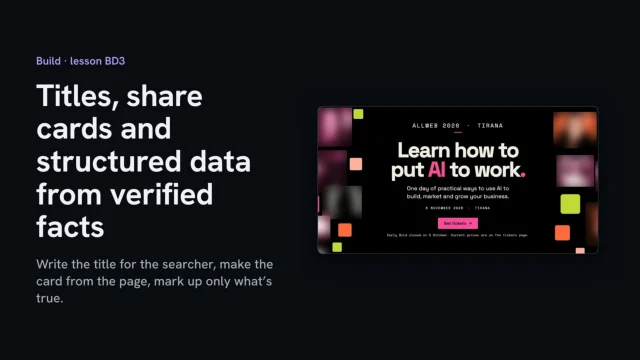
The AllWeb redesign's home page: title "AllWeb 2026 Tirana, 6 November · Marketing, business & innovation conference", its description, share tags on the review address, a share card made by tools/og-shot.mjs, JSON-LD Event facts (name, date, Tirana, in person, organizer) traced to BRIEF.md "Facts used". Note: `scripts/learn-video/demo-site/allweb/BD3/page-metadata.md`.
Check it
Done when every page has a title and description, the share card comes from the page and its tags point at the address you're sending, and every structured fact has a row on the claims list and parses in a checker.
Used next
Put a preview online from your project (BD2), then put the review build online (B2).

Page metadata

For every page

Page 1
Page 2
Page 3

Copy or download your answers before you leave this page.

Describe only what the page shows. A fact without a claims-list row stays out of the structured data.

Done when every page has a title, a description and a share image pointing at the address you’re sending, and every structured fact has a claims-list row and reads back cleanly.

More

Full transcript

Before anyone visits a page, they meet it somewhere else: as a search result, or as a link pasted into a chat. Both are built from a few lines at the top of the page. These are those lines on my speculative AllWeb redesign, and each one has a job.

The title is written for the person searching. It says what the event is, where and when: AllWeb 2026, in the capital of Albania, on 6 November, a marketing, business and innovation conference. The description helps them decide whether to click: who it's for, the day, the city, and what they'll find there. The share card is a picture of the page itself. A script opens the page, crops the hero to twelve hundred by six hundred and thirty pixels, and saves it. Run it again whenever the hero changes. On a review build, every one of these tags points at the review address. A card that points at the client's own domain would look as if they had published it.

Structured data describes the page to search engines and AI answers, in a fixed vocabulary. Here it gives the event's name, its dates, that it happens in person, and its city. Every one of those facts needs a row on the claims list. The name, the date and the city come from the brief's facts list, copied from AllWeb's own site. Describe only what's on the page. This page has no questions section, so it has no FAQ data. Then read it back. A checker, or a short script like this one, should parse it and repeat what the page says.

Record it for each page: the title, the description, the share card, and every structured fact with its row on the claims list.

Write titles for searchers, make cards from the page, and mark up only verified facts.

The AllWeb example

The share image in the video was made from the page on 1 November, on a copy of the site.

With this task: Multilingual sites search engines understand, Let search intent shape the site.

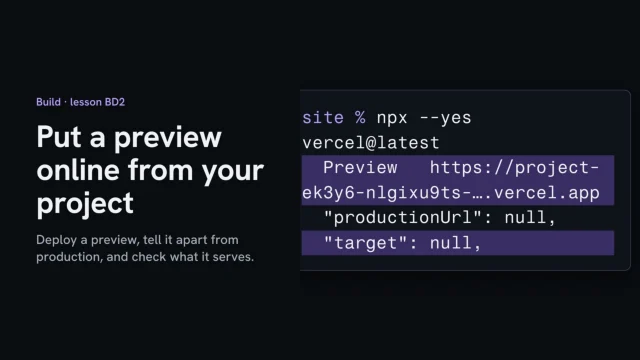
Decide what stays on your computer, then put a preview of the site online without touching the address you launch on. Open it as someone who isn’t signed in, check what it serves, and write the preview down.

Before you start
The assembled site running on your own computer; an account with a host, and the project folder linked to it.
You’ll learn
What gets uploaded and what stays home (the ignore file); deploying a preview without touching production; the difference between a preview and production; opening the preview as someone who isn't signed in; checking what the review address serves.
You’ll make
A preview entry in the project notes: the address, that it is a preview, who can open it, and what you checked.
Worked example
The AllWeb redesign (~/AllWeb/site), deployed as a preview on 1 Nov 2026 (protected, noindex); its review address checked for noindex in header and page, robots.txt Allow, and private files answering 404. Notes: `scripts/learn-video/demo-site/allweb/BD2/notes-preview.md`.
Check it
Done when the preview exists, you've opened it as someone who isn't signed in, and your notes say which address is the preview, who can open it, and what the review address serves.
Used next
Put the review build online (B2): noindex in both places, no robots.txt block, access protection when it must be private.

Done when the preview exists, you’ve opened it as a stranger, and your notes say its address, that it isn’t production, who can open it and what it serves.

Hide the review build from search

A draft is public the moment it has a web address, so ask search engines to leave it out, in the page and in what the server sends with it. Check both on the exact link before you send it, and clear every unfinished placeholder.

What you’ll make

Before you start
A built site and a preview address.
You’ll learn
Preview vs production, noindex in the page and the header, no robots.txt block, keys out of the page, honest share cards, no placeholders, checked on the exact link.
You’ll make
A review link with both noindex signals confirmed.
Worked example
The bakery’s review build: noindex asks search engines to stay away; it doesn’t make the page private. Anyone with the link can open it.
Used next
Test, and the launch list (remove noindex at go-live).

My review build

Before I send the link

Sending it, and launch

Copy or download your answers before you leave this page.

Find out what your host does with draft addresses rather than assuming it hides them. Don’t add a rule telling search engines not to visit the pages: then they never read the noindex.

Done when you’ve confirmed noindex on the live review link in both places, no unanswered placeholder is left on a page anyone can reach, and removing noindex is on the launch list.

More

Example project files

The two places, as code

  • meta robots: noindex, nofollow
  • X-Robots-Tag: noindex
  • On every page and file you ship
Verify before you send the link
1$ curl -sI https://harrow-review.example.com \
2 | grep -i x-robots-tag
3x-robots-tag: noindex
4
5$ curl -s https://harrow-review.example.com \
6 | grep -i 'name="robots"'
7<meta name="robots" content="noindex, nofollow">

Checked with curl, a command-line tool, for a fictional architecture practice. A browser’s developer tools show the same two things.

From the skill Put the review build online · fictional client

Where yours go: Organize your project, in Prepare.

Full transcript

The client needs to see the site on their own phone, so it goes online, at a review address. The moment it has one, it's on the public web. Anyone with the link can open it, and so can a crawler that finds the link.

This happened. A demo of a photographer's site, built as a pitch, went up on a public address with nothing telling search engines to stay away. It started appearing in search above his own website. Nobody wanted that, least of all him. On a different project, a live client page went out with the words legal entity name still sitting in square brackets.

Most hosts give you two kinds of address. A preview is made for one version of the site, so you can check it and send it round. Production is the address the site launches on. Hosts treat them differently. Some add a noindex signal to previews and nothing to production, and that can include the free address the host gives a new project before it has a real domain. So find out which kind your review link is, and read your host's own page on what it adds. Don't assume. Whatever the host does, your review build carries its own noindex.

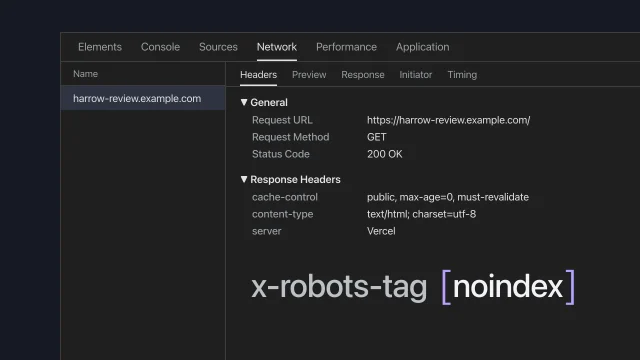
Noindex is the instruction that keeps a page out of the index. Google documents two ways to give it: a robots meta tag in the head of each page, or an X-Robots-Tag header on the response. Do both. The meta tag travels with the page if someone copies the build to another host. The header covers files that have no head, and Google's page names PDFs, images and video. Your host's settings can usually add the header for every file.

Three assumptions to drop. The host first: as you've seen, what it adds depends on the host and on the kind of address. Then robots.txt. Never block a review build there. Google is explicit: if robots.txt blocks a page, the crawler never sees the noindex on it, and the address can still show up if something links to it. Last, noindex is a request to search engines. Anyone with the link can still open the page. If it has to be private, use your host's access protection, a password or a login in front of the whole build.

Some sites need keys: long secret strings that let the site use a map, a form service or a database. A key written into the code that reaches the browser can be read by anyone with View Source, review build or not, and someone else's bill can land on your client. Secret keys live in your host's settings, as environment variables, where the server uses them and the page never shows them. A few services issue a public key that's meant to sit in the page, and their docs say so. Everything else stays out of the code.

Then check it, every time, in a browser, on the exact link you're about to send. Open the link. View the page source and search for robots: the meta tag should be there, saying noindex. Then check the header. Your browser's developer tools show it in the network panel, and one command in a terminal shows the same. X-Robots-Tag should say noindex. While the source is open, search it for key. If either noindex signal is missing, or a secret key turns up, the link doesn't go out.

Next, the link preview. When the client pastes your link into a chat, many apps read the page's Open Graph tags to build a card. If those tags point at the client's real domain, with their real logo as the image, the draft presents itself as their live site wherever the link travels. On a review build, leave the preview image off, or point it at an image hosted on the review build itself.

Then placeholders. Brackets survive when you only check the pages you expect to see. Search what actually ships for square brackets and for your CONFIRM marker. Include pages nothing links to yet, because they're still reachable by address. If a fact isn't confirmed, the sentence comes out. A missing line reads as unfinished. A bracket where the company's legal name should be reads as careless.

None of this stops the client seeing it. Send them the exact link. You're done when that link opens, you've seen both noindex signals on it, and no key is in its page source. Then put the removal on your launch checklist, because the same mistake runs the other way too: a noindex tag that ships with the real site keeps the client's new homepage out of search until somebody notices.

A review build is public as soon as it has an address. Know whether it's a preview or production, put noindex in the page and the header, keep every key out of the page, and check all of it in a browser on the exact link before it goes out.
On Vercel

It depends on the host: preview deployments get the noindex header, and the current production address doesn’t, so add it yourself there.

What people assume about drafts
What people assumeWhat the docs say
My host hides draftsIt depends on the host
robots.txt keeps it outThen Google can't see noindex
Noindex makes it privateAnyone with the link gets in
Other resources

Zero placeholders on a reachable page

  1. Search what ships, not the source
  2. Look for [ and CONFIRM
  3. Include pages nothing links to
  4. Confirm the fact or cut the line

Further reading

Every tool here is made by someone else. Aesthetary isn't affiliated with any of them, and listing one doesn't mean its maker endorses Aesthetary.

The AllWeb example

AllWeb’s review build carries noindex in the page and an X-Robots-Tag header; check both on the live address.

With this task: Spec work without the risk.