Research

What’s true about the business, how its customers talk and what its competitors all do, each written down with a source.

0 / 13 complete

Starts with
The project folder, The client’s current site, Its public profiles
Produces
Site audit, Technical baseline, Claims list, Evidence package
Feeds into
Plan

Production Checklist

  1. Video, 1:23 Introduction to Research Introduction
  2. Video, 3:31 Qualify the project first Makes: Go/no-go
  3. Video, 3:24 List what the business already has Makes: Source inventory
  4. Video, 2:09 Take the rest of the brand from the live code Optional
  5. Video, 1:31 Number every image on one contact sheet Makes: Image contact sheet
  6. Video, 2:56 Get the client's photos, numbered and intact Optional
  7. Video, 3:31 Check image rights and use AI images honestly Makes: Image rights log
  8. Video, 1:32 Check what search, maps and AI say about the business Makes: Footprint check
  9. Video, 3:34 Talk to the people who decide Makes: Interview record
  10. Video, 3:16 Collect customers’ own words Makes: Customer words
  11. Video, 3:08 Map every claim to a source Makes: Claims list
  12. Video, 3:43 Audit the site and its category Makes: Site audit
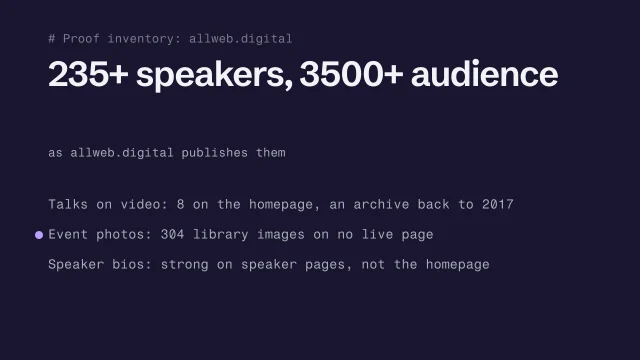
  13. Video, 1:29 Find the proof the site already has Makes: Proof inventory
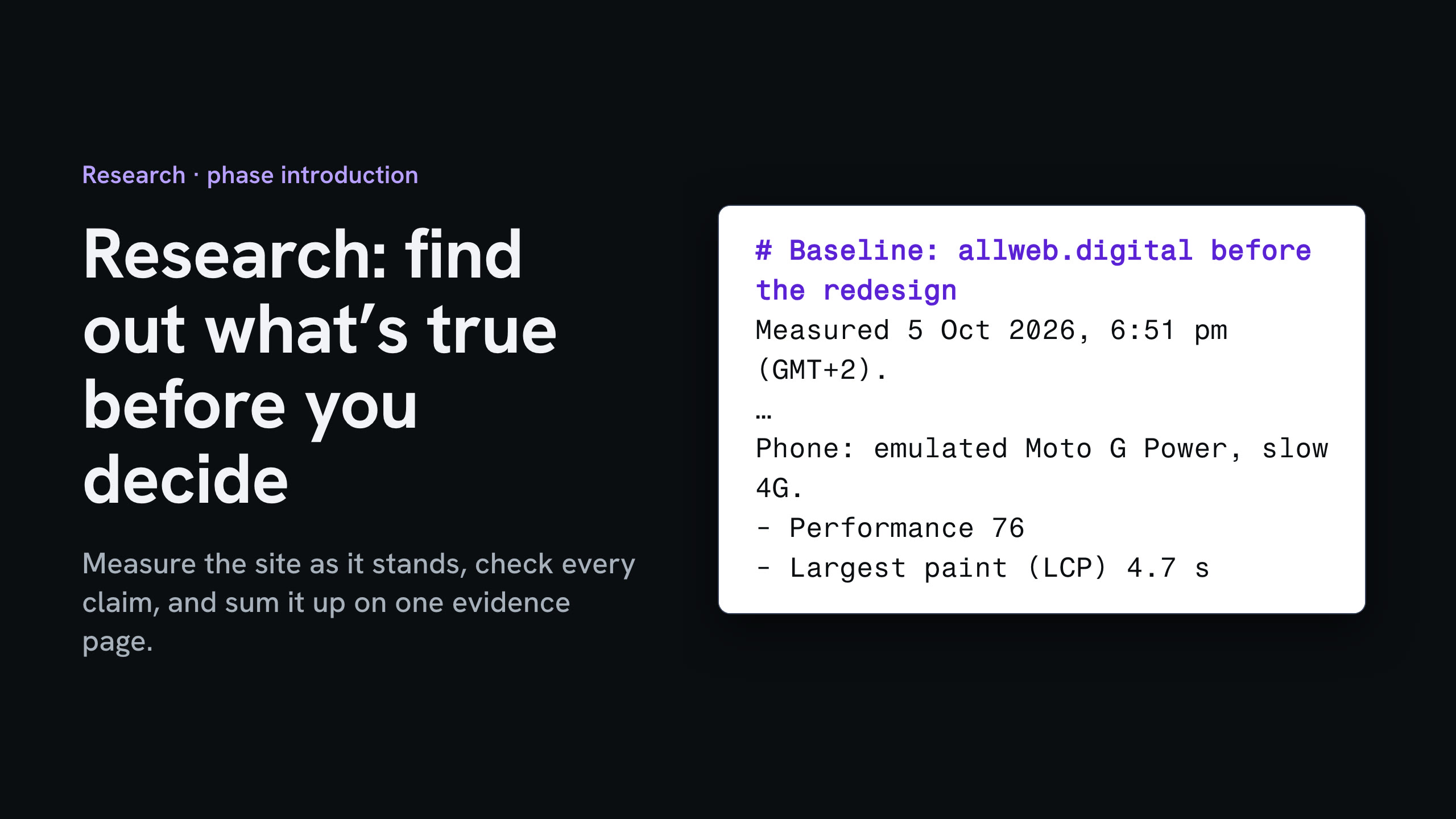
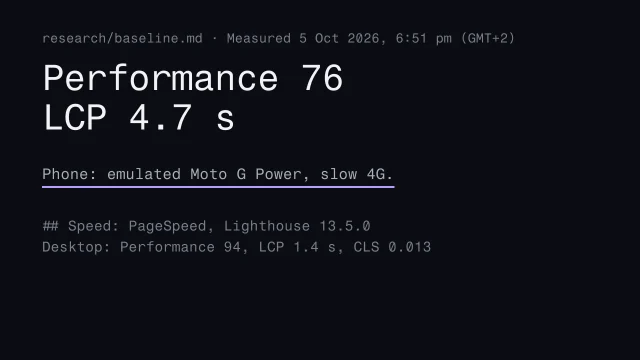
  14. Video, 1:21 Measure the current site before you change it Makes: Baseline numbers
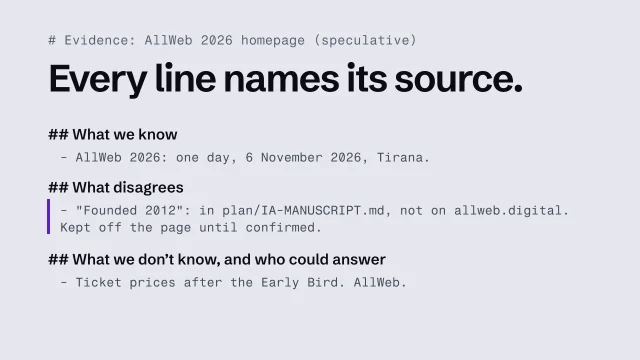
  15. Video, 2:04 Put the research on one evidence page Makes: Evidence page
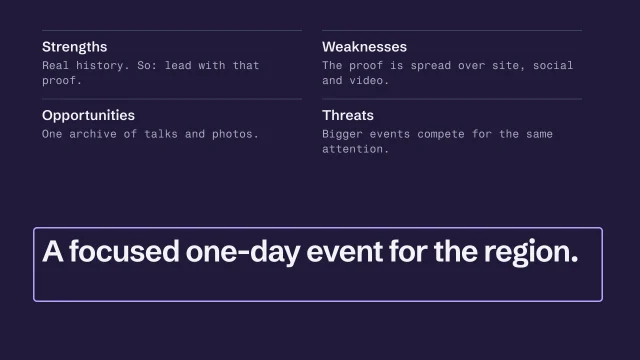
  16. Video, 1:44 Write a SWOT, every line sourced Makes: SWOT

Your ticks are your own record of your learning. A project’s tasks are marked done on its page in Projects. See your worksheets

Next phase: Plan

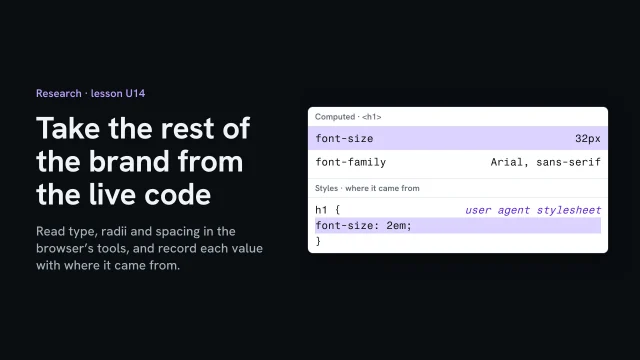
Take the rest of the brand from the live code

Read type, radii and spacing in the browser's tools, and record each value with where it came from.

More

Full transcript

The colors were one part of the brand. Type, corner radii and spacing live in the old site’s code as well. The browser will show you every value, and where each one came from, which is how you tell a decision from a default.

Right-click the old site’s heading, choose Inspect, and open Computed. It lists what the browser actually used: Arial, thirty-two pixels, bold. Under it, the rendered font names the face that really drew the letters. Here it’s Arial, but if a site’s font fails to load, this is where you’ll see the fallback.

Now switch to Styles, which lists every rule that applies, with its source. The font comes from style.css, line one, the body rule: somebody chose Arial. The size comes from the browser itself: its default for a top heading is two em. Nobody chose thirty-two pixels. The section headings are the same story: the browser’s one and a half em, so twenty-four pixels. The space above each paragraph is its one em, sixteen pixels.

Clicking every element is slow, so ask your agent for a small script that reads the computed values of every element and counts them. On the old site, fifteen elements share one face, three sizes and two weights, and not one has a rounded corner. The only spacing written in the stylesheet is the page’s own: twenty pixels at each side.

Write each value down the way you did the colors: the value, a source precise enough to reopen, and whether it’s brand. Here the answer is no, every time. The face came with a template, the sizes came with the browser, and nothing has a radius.

That’s a finding, not a dead end. It tells design there’s no type to keep, so the face can be chosen fresh. On a site someone did design, the same steps find the real values: a font loaded on purpose, one radius on every button, one gap used everywhere. Copy those exactly, with their file and line, and ask the client whether they’re still current.

Copy each value with where it came from. A browser default is not the brand.

Get the client's photos, numbered and intact

Get the originals, take out the location, note who is in each, and number them for good.

More

Full transcript

The owner has about forty photos on her phone, mostly bread and the morning queue. Before any of them goes near a design, get them at full size, write down who and what each one shows, and give each photo a number that never changes.

The first eight came through a chat. Each one is sixteen hundred pixels wide, and under a hundred kilobytes. Chat apps often send a smaller copy, unless the photo goes as a file. Here’s the same photo from the phone itself: four thousand and thirty-two pixels wide, two point three megabytes. A photo across the top of a page needs that one. So ask for the originals, all in one shared folder, or sent as files. Keep that folder exactly as it arrives, and back it up.

The original carries more than the picture: which phone took it, when, and exactly where. All forty have a location. Most were taken at the shop, but a photo taken at home carries the owner’s address. So keep the originals as they are, and work from copies with the location taken out. Three came from the head baker’s phone as HEIC files, which plenty of tools, and some AI agents, can’t open, so their copies are JPEGs. Then check the copies: none has a location left.

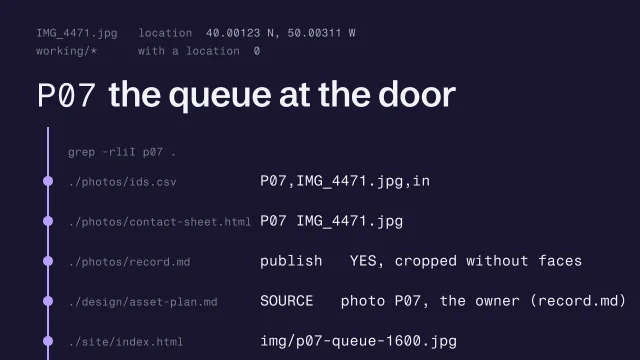
Now number the copies, in the order they were taken, P one to P forty. The numbers go in a small file, and onto a contact sheet: one page, every photo small, its number underneath. Now the owner can point at a photo by its number: use P seven. So can you, and so can an agent, and nobody has to describe one photo of bread among forty photos of bread. A number is never reused. The blurred one, P twelve, is dropped, and keeps its number. When the next photo arrives, it becomes P forty-one, and every number before it stays put.

Then give each number an entry in the photo record. Who took it and who allowed it come from the rights lesson. Add two questions: who is in it, and what does it show of a home? P seven shows two customers’ faces, so it waits for an answer. P seventeen is a customer’s child: that’s a no, however good the photo. P twenty-three is the owner’s own kitchen, so she decides. A blank is never a yes.

The number goes wherever the photo goes. In the record, P seven now says yes, cropped without faces, agreed on the twelfth. In the asset plan, the home page’s first image is P seven. On the page, the file is named after it. So when the owner changes her mind about a photo, search the project for its number. Every place it’s used comes back: the numbers file, the contact sheet, the record, the plan and the page.

Ask for the originals, take the location out, write down who and what each photo shows, and give it a number that never changes.

Introduction to Research

Starts with
The project folder, The client’s current site, Its public profiles
Produces
Site audit, Technical baseline, Claims list, Evidence package
Feeds into
Plan

Qualify the project first

Before you design anything, check that the business is trading, has something worth fixing, and that you know who decides and pays. Write your own call with evidence before you ask AI what it thinks.

What you’ll make

Before you start
Prepare done.
You’ll learn
Four questions (alive, something to fix, who the client is, the money test), each with dated evidence and what would change your answer.
You’ll make
A go/no-go sheet.
Worked example
The bakery’s go or no-go: written on 3 October, before any AI looked at the project.
Used next
Plan (scope); the source inventory starts only on a go.

Go or no-go

Question 1
Question 2
Question 3
Question 4

Copy or download your answers before you leave this page.

Unsure is an allowed answer. The last column turns a worry into a task.

Done when each of the four questions has an answer, its evidence and a date, and you’ve written go or no-go with what would change it.

More

Example project files
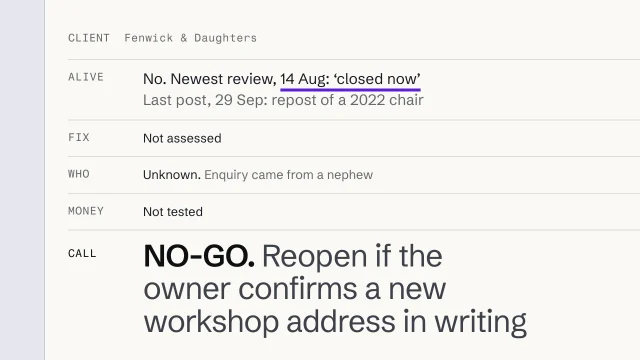
A go/no-go sheet (a fictional upholsterer, a no-go)
1CLIENT Fenwick & Daughters (fictional)
2ALIVE No. Newest review, 14 Aug: 'closed now'
3 Last post, 29 Sep: repost of a 2022 chair
4FIX Not assessed
5WHO Unknown. Inquiry came from a nephew
6MONEY Not tested
7CALL NO-GO. Reopen if the owner confirms
8 a new workshop address in writing

From the skill Qualify a project before you take it · fictional client

Where yours go: Organize your project, in Prepare.

Full transcript

Before you design anything for anyone, find out whether the project is real.

You spend a week on a homepage for a business that has already moved on. Or you pitch someone who can't sign anything. Both start on day one, when you say yes to a project you never checked. Qualifying is the short check that prevents it: a few questions, each answered with evidence, written down before you start.

I use four questions. First, is the business alive: trading now, at this address, answering its phone. Second, is there something to fix: a real problem the website causes or could solve, beyond 'it looks old'. Third, who is the client: the person who decides and pays, which is often not the person who emailed you. Fourth, the money test: can they pay for this, and is what you'd fix worth more to them than it costs? A no on any one of them is worth knowing now.

Sign of life is where people get fooled, because the internet keeps a business looking open long after it has stopped. Take a fictional upholsterer, Fenwick and Daughters. Their social page posted last week, but it's a chair from four years ago, the kind of repost a scheduler sends out by itself. The map listing says open now, because nobody told it otherwise. Sort the reviews by newest and the top one says the owner retired and the workshop is shut. So read what the evidence describes, and check the date on the thing itself, never the date the platform shows you.

Who the client is sounds obvious until you're three drafts in and someone new appears with opinions. Ask early and plainly: who decides, who pays, and who else has to like it. A manager who loves your idea may not be able to approve the spend. A partner who never answered your email can still veto everything. If you can't get a name for the person who decides, write 'unknown' and treat it as a risk.

The money test is really two questions. A business that could easily afford a new site but loses nothing from the current one will stall on every invoice. One that loses bookings every week to a broken inquiry form may find the money quickly. You don't need their accounts. You need a rough idea, in their own words, of what the problem costs them.

For each question, write four things. The question. Your answer, and unsure is allowed. The evidence, as a link or a file path, with the date the evidence is from. Then what would change your mind. That last line does the most work. It turns a vague worry into a task: if the phone goes unanswered twice this week, this is a no.

Here's the sheet for the upholsterer. Alive is a no, and the two lines underneath say why, with dates. Who is unknown, because the inquiry came from a relative. Fix and money were never assessed, because there was no point. The call is no-go, and it says exactly what would reopen it. If you wrote this on Monday and a colleague read it on Friday, they could check every line without asking you a thing.

Do all this before you ask the AI, for the same reason you decide first on anything else. Asked whether this is a good lead, it will happily help you talk yourself into a yes. Then let it look for evidence you missed. Keep the sheet in the project folder. When something goes wrong in month two, it's the first thing you'll want to reread.

If you can't point to the evidence, you haven't qualified the project. You've hoped.

If you own, make or teach this site
If you own or pay for the site
Start with the swimming school’s reviews: your customers have already described you. Approving or paying for someone else’s site? Ask for the claims list. It shows what the site can prove.
If you make it
Start with qualifying the project before you quote for it. You hand Plan six short documents; check every date and grade an agent drafts.
If you teach it or run a program
Every example here is a small fictional business from a skill further down. A good exercise: rewrite an opinion question as a fact question. A good test: does every claim on a draft have a source and a status?
The same step on AllWeb

The video’s upholsterer is a no-go. AllWeb was a go for a speculative redesign: the event was live and dated, 6 November 2026 in Tirana, and every fact needed was public.

List what the business already has

Collect everything the business already has, online and on file, before you ask the owner for anything. Give each item one row: what it is, where it came from, when its content is from, and how far you can trust it.

Also in this task

Harvest a client's whole web presence with AI 4 min

The lesson’s own page, with its transcript

Take brand colors from evidence 4 min

The lesson’s own page, with its transcript

What you’ll make

Before you start
A go decision.
You’ll learn
Turning a harvest into an inventory: one row per item with source, content date, reliability and what would raise it.
You’ll make
An inventory and a short list of questions only the owner can answer.
Worked example
The bakery’s inventory: a color read off a photo is a guess, so the green stays provisional until the sign-maker’s reference turns up.
Used next
Claims list, brand colors (Design), the asset list (Structure).

What the business already has

A file’s date isn’t its content’s date. Take the date from the content, or leave it blank.

The harvest of the current site

Save it before anything changes: every page, its words and how it looks. Write where each part is saved.

Brand evidence

Item, and who made it 1
Item, and who made it 2
Item, and who made it 3
Item, and who made it 4

Copy or download your answers before you leave this page.

Look everywhere first: its own site, map and booking profiles, social accounts old and new, directories, and any old address still in search.

Done when every item has a source you could reopen and a content date or a marked blank, and what’s left is a short list of questions only the owner can answer.

More

Find what nobody linked to

A crawl only finds what the site links to. Check by hand, as Harvest a client's whole web presence with AI shows:

  1. Search the name with the town
  2. Search the phone and address
  3. Run site: on every domain you find
  4. Check an archive of old versions

Tools that let an agent read and search the web: Firecrawl MCP, Exa MCP.

Example project files
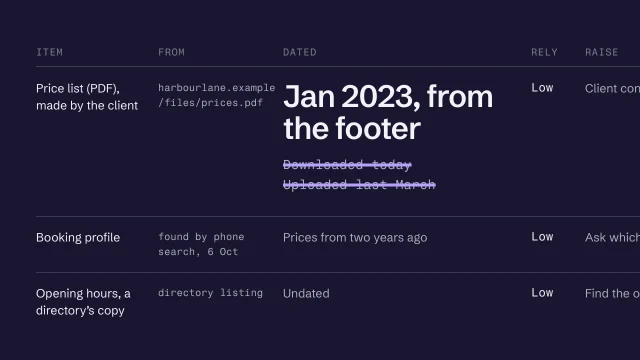
One inventory row (a fictional clinic)
1ITEM Price list (PDF), made by the client
2FROM harbourlane.example/files/prices.pdf
3DATED Jan 2023, from the footer on page 1
4 (file downloaded today: not the date)
5RELY Low: booking profile shows other prices
6RAISE Client confirms current prices in writing

From the skill Build a source inventory you can trust · fictional client

A prompt for any agent with web access. It saves the raw pages as text, with nothing summarized, so the exact wording survives.

A crawl prompt (the same clinic)
1Fetch <the client's site> and every page it
2links to. Also read /sitemap.xml and
3/robots.txt. Save each page's full text, word
4for word, one file per page, in
5research/harvest/, stamped with its address
6and today's date. List every link out to
7another platform. Mark anything you couldn't
8confirm. Don't summarize, fill gaps or fix.

From the skill Harvest a client's whole web presence with AI · fictional client

The harvest, kept as folders
1research/harvest/
2 site-home.md the one-page site, 5 Oct
3 about-text.md word for word, 5 Oct
4 hours-as-found.md NOT CONFIRMED as current
5 social-page.md specials, each post's date
6 reviews.md customers' own words, 5 Oct
7 site-archived.md archive copy, its own date
8 screens/1440/ screens/768/ screens/390/
9 questions.md what only the owner knows

From the skill Harvest a client's whole web presence with AI · fictional client

Where yours go: Organize your project, in Prepare.

Full transcript

A harvest is only useful once you can trust what's in it.

After a harvest you have a pile. Downloads, screenshots, PDFs, pasted text, and the client's own folder of things. A pile feels like research, but you can't build on it, because you can't tell which version of the opening hours is current or where a photo came from. An inventory is the same material with one row per item, saying what it is, where it came from and how old it is. My test for a source field: could a stranger open it and find the same thing? If not, it isn't recorded yet.

Each row has five fields. What it is, in plain words, and who made it: the client, a customer, a directory, you. Where it came from, as a full web address or file path, so anyone can open it. The content date, and how you know that date. Reliability: high, medium or low. And what would raise it. This is the part that saves you when the client asks where a claim on their own homepage came from.

The field that catches people is the content date. When you download a PDF price list, your computer stamps it with today. The server may say it was uploaded last March. Neither is when the prices were set. Open the file. The fictional Harbour Lane clinic's price list says 'from January 2023' in the footer, and that's the date that counts. If nothing in the content gives a date, write 'undated' and lower the reliability. Don't fill the box with the file's date because it looks empty.

Here's that row. The source is precise enough to reopen. The date comes from the content, with a note so nobody, person or agent, swaps it for the download date later. Reliability is low, and the reason is written down: another source shows different prices. And the last field is already a question for the client.

Low reliability is a note about how far you can lean on a source. A source drops when it has no date or an old one, when you can't say who made it, when it disagrees with something more direct, or when it's a copy of an original you haven't seen. A directory that copied the clinic's hours years ago is all four. It still goes in the inventory. You just don't put its hours on the new site.

Then say what would raise it. Find the original the copy came from. Find a second source that didn't copy the first. Ask the client to confirm in writing, so the confirmation becomes a dated source of its own. If none of that is possible, the item stays in the inventory marked low, and stays off the page. Filling in this field gives you a short list of questions for the client, which is exactly what the harvest was for.

Your coding agent is useful for the first pass. It can walk the harvest folder and draft a row per file. It's weakest on the two fields that matter: it can easily take a file's date for a content date, or call a confident-sounding page reliable. So tell it to leave the date blank when the content gives none, rather than guessing. Then check every date and every grade yourself. Keep the inventory as a file next to the harvest, so the next session starts from it.

Every item gets a source and a real date, or it doesn't go on the site.

Tools for Research

Research is mostly reading and asking, so none of these is required. Each one saves time on a particular question.

Let a coding agent read the web

Helps answer: What already exists?

Both connect to a coding agent through MCP (Model Context Protocol), an open standard for plugging an outside tool into an agent. Neither is needed if you're happy to copy pages by hand.

  • Firecrawl MCP (opens in a new tab)

    firecrawl.dev · Agent integration

    Lets a coding agent read a client's current site, page by page, before you redesign it.

    For Research: Pulls the client's current site down page by page, as text you can search and quote from.

  • Exa MCP (opens in a new tab)

    exa.ai · Agent integration

    Lets a coding agent search the web for sources while it researches. For reading a whole site, Firecrawl suits better.

    For Research: Lets the agent search the web while it works: the business's other profiles, its press, its competitors.

See what the category already looks like

Helps answer: What already exists?

Galleries of live websites. Use them to learn how good sites handle a section, then build your category grid from the client's actual competitors, who are rarely in any gallery.

  • Land-book (opens in a new tab)

    land-book.com · Reference

    Best for section-level research.

    For Research: Filter by section and compare how a dozen sites handle the same part of a page, pricing say, or the first screen.

  • One Page Love (opens in a new tab)

    onepagelove.com · Reference

    A long-running collection specifically of one-page site reference.

    For Research: Sites that fit on one page. Look here when the client's site will be small.

  • SiteInspire (opens in a new tab)

    siteinspire.com · Reference

    A curated gallery with a consistently high visual bar.

    For Research: Picky about what it lists, so it shows what careful work in a category looks like.

  • Recent.design (formerly Godly) (opens in a new tab)

    recent.design · Reference

    A gallery of current website design, for seeing what is being made now. It used to be called Godly.

    For Research: What designers made this month. Handy for spotting what will look dated by next year.

  • Awwwards (opens in a new tab)

    awwwards.com · Reference

    A high bar of real-world reference for ambitious visual and interaction design.

    For Research: Award entries. Read it for ideas, not for what a bakery's customers expect to find.

  • Lapa Ninja (opens in a new tab)

    lapa.ninja · Reference

    A focused gallery of landing-page reference.

    For Research: Landing pages only. A fast way to see how sites open, and what they ask a visitor for first.

  • 60fps.design (opens in a new tab)

    60fps.design · Reference

    A gallery focused on motion and interaction reference.

    For Research: Motion and interaction, for when the question is how a page behaves rather than how it looks.

  • Mobbin (opens in a new tab)

    mobbin.com · Reference

    Best for 'how do good products do X'; more app than marketing.

    For Research: App screens, not marketing sites. Open it when the site needs a login, a booking or a checkout.

  • Firecrawl (opens in a new tab)

    firecrawl.dev · Tool

    Most flexible way to 'copy a landing page into AI coding agents' without literally cloning it.

    For Research: Strips a page you admire down to its text and structure, so you study how it's built instead of copying how it looks.

Check what you're allowed to use

Helps answer: What does the evidence actually say?

Before a found image or text goes on the site, someone has to know who made it and what they allowed.

See what people search for

Helps answer: What does the evidence actually say?

Paid, and only worth it when search demand will change a decision. Search Console already shows, free, what people search to find a site that exists.

  • Semrush (opens in a new tab)

    semrush.com · Tool

    One paid research suite is enough. This one covers keyword demand, competitors, site audits and rank tracking.

    For Research: Shows how many people search for the words your customers use, and which sites already rank for them.

Every tool here is made by someone else. Aesthetary isn't affiliated with any of them, and listing one doesn't mean its maker endorses Aesthetary. All resources, by stage

Standards Research is checked against (5)

Aesthetary's own rules here

  • Aesthetary rule Generated imagery is never used as evidence
  • Aesthetary rule Never invent a fact; claims carry their kind; no placeholder reaches a reachable page

Laws are listed so you know they exist: Aesthetary links to the text and doesn't give legal advice. What these are, and every standard, in Resources

Brand colors and photos

Take brand colors from evidence: copy colors from the logo file, the site’s styles or a brand guide, never from a photo. Record both when two sources disagree.

Check image rights and use AI imagery honestly: every image needs to say who made it and who allowed it. If a visitor will believe it shows the business, it has to be the business.

License details: About CC Licenses.

Photos and the rest of the brand

Get the client's photos, numbered and intact: originals, location removed, one number per photo for good.

Take the rest of the brand from the live code: type, corners and spacing read from the live code, each with where it came from.

The same step on AllWeb

All 60 public pages of allweb.digital and its public media library, 466 items, were collected on 5 October before anything was designed. The photos went onto a numbered contact sheet. Colors came from the 2026 campaign art and the real wordmark; the venue photo is from Wikimedia Commons (CC0) and credited anyway.

Number every image on one contact sheet

Put every image the business has on one sheet with its source, size, pages and alt text. Then give each one you might use a numbered row that says who made it, whether you may use it, and where it would go.

What you’ll make

Before you start
The harvest: every image from the site, the library and the client.
You’ll learn
  • Every image on one sheet with source, size, pages and alt text
  • A number per usable image that never changes
  • Who made it and whether you may use it, or a question
You’ll make
An image contact sheet in the project folder, and numbered rows in the worksheet.
Worked example
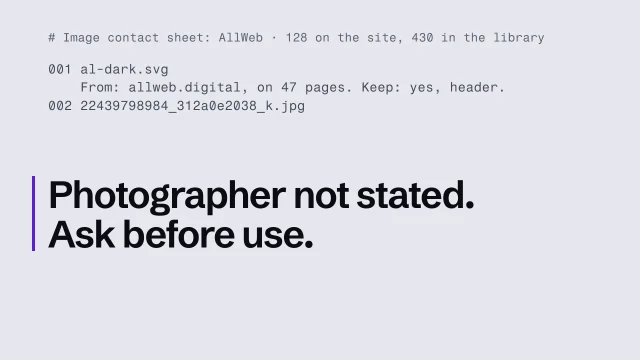
AllWeb's sheet: 128 images on the site, 430 in the library; 001 al-dark.svg kept for the header; 002 an event photo whose photographer isn't stated, so ask before use.
Check it
Every usable image has a number, a source, a maker and a permission or a question.
Used next
Design chooses and treats images from these rows.

Image contact sheet

No. 1
No. 2
No. 3

Copy or download your answers before you leave this page.

Done when every image is on the sheet, each one you might use has a number that never changes, and its maker and permission are written down or marked as a question.

More

Full transcript

A harvest leaves you with hundreds of images, spread over pages and folders. Before you design with any of them, put every one on one sheet, where you can see it, count it and decide about it. Here's AllWeb's, made on the fifth of October. The photos are blurred in this video, because they show real people.

It has two parts. Everything the live site shows: 128 images, and 113 of them have no text alternative. Then the whole media library: 430 images, and most of them never reach a page. Each image carries what you'll need to decide about it: its file name, its size, how many pages use it, and whether it has a text alternative. Click one, and the original opens on the live site.

Then give each image you might use a row of your own, with a number that never changes. Where it came from, and where it's used. Who made it, and whether you may use it. For this event photo the photographer isn't stated, so that's a question to ask, not a yes. Keep or cut, and the slot it would fill, you settle in Design. The sheet stays in the project folder as a page of links to the originals, with a PDF copy, and your worksheet records its path. Keep both. You'll use them again on the next site.

Put every image on one sheet with its source, size, pages and alt text. Then give each one you might use a numbered row: who made it, whether you may use it, and where it would go.

Originals and rights

Get the client's photos, numbered and intact: originals in, location out, one number per photo.

Check image rights and use AI imagery honestly: who made it and who allowed it.

Check image rights and use AI images honestly

For every image the design might use, write who made it, who allowed it to be used here and where that permission is written down. Then agree with the client where generated images may go, and never let one stand in for the real business.

What you’ll make

Before you start
The image contact sheet, with every image numbered.
You’ll learn
  • Every image needs a maker and a written permission, or it stays off the page
  • Unclear means find out, replace it, or leave it out
  • A generated image is never evidence of the real business
You’ll make
An image rights log: each image’s maker, permission, who is in it and what a visitor will believe it shows, plus where generated images may go.
Worked example
AllWeb’s redesign uses its own photography only and a CC0 venue photo, credited; no generated or stock photos, and an empty, labeled box where an image is missing.
Used next
Design grades and prepares only the images this log clears; the asset list in Structure points at them.

Image rights log

Generated images

Image (contact-sheet number) 1
Image (contact-sheet number) 2
Image (contact-sheet number) 3
Image (contact-sheet number) 4

Copy or download your answers before you leave this page.

Unclear means not yet: find out, replace it, or leave it out. Not a lawyer’s advice; when money or a dispute is involved, the client should ask one.

Done when every image has a maker and a written permission or is off the list, and the client has agreed where generated images may and may not appear.

More

Example project files
An AI-image policy (the bakery, fictional)
1ALLOWED Backgrounds, textures, concept boards
2NEVER The shop, staff, bread or customers
3RECORD Tool, date, prompt, who approved it
4SIGNOFF Client approves before launch

From the skill Check image rights and use AI imagery honestly · fictional client

Where yours go: Organize your project, in Prepare.

Full transcript

Every image on a client's site is a decision about rights and about truth. Make both on purpose.

Images are where small sites get into trouble quietly. The client sends a folder, the old site has a gallery, the agent finds a perfect photo online, and three months later nobody knows which is which. Before an image goes into a design, it needs two answers: who made it, and who gave permission to use it here. If you can't answer both, you don't know whether you can use it.

Add images to your source inventory with their own fields. Where it came from: the client's folder, the old site, a stock library, a generator. Who made it: a photographer, a member of staff, a customer. What permission exists, and where it's written: a license, an invoice, an email. And who's in it, because a recognizable person raises questions only the client can answer. 'The client sent it' tells you where it came from, not who owns it. Paid stock counts too: keep the license or receipt with the image, because its terms are your permission.

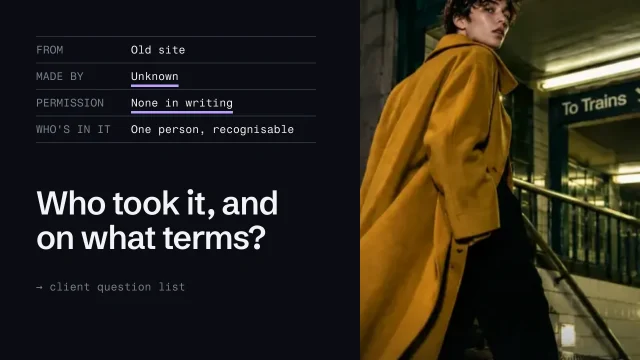
When rights are unclear, you have three moves: find out, replace it, or leave it out. An image found through search is out unless you can trace it to a license. A photo from the old site goes on the client's question list: who took it, and on what terms? A customer's photo of their order is lovely, and it's theirs. Ask them, or don't use it. Unclear doesn't turn into yes because the deadline is close. If the client insists an image is theirs to use, get that in writing and keep the email with the image.

Licenses have an official teacher, and it isn't me. Creative Commons explains its six licenses, and every one of the six requires credit to the creator. If a license includes NC, non-commercial, check whether a business website fits before you rely on it. The link is with this lesson. I'm not a lawyer, and when money or a dispute is involved, the client should ask one.

Now generated images. They have a place: texture, atmosphere, a concept for a client to react to. But a generated image is never evidence. It doesn't show the real shop, the real team, the real product or a real result. A generated 'our workshop' picture is a false claim, made with pixels instead of words. The same goes for editing a real photo until it shows something that didn't happen: a fuller room, a product that doesn't exist yet.

Write it down as a short policy in the project, and agree it with the client. Allowed uses. Never-uses, named concretely for this business: the shop, the staff, the bread, the customers. And a provenance record for each generated image: which tool, when, the prompt, and who approved it. Check the generator's own terms as well, since they govern what you may do with its output. Months later, when a client asks where a picture came from, the record is your answer.

The two halves meet in one test. For every image in the design, ask what a visitor will believe it shows. If they'll believe it's the business, it has to be the business, photographed with permission. If it's decoration, the context has to make that obvious. And if you can't tell where an image came from, it doesn't go on the page. Write the answer next to each image in the inventory before you send anything.

If an image presents something as real, it has to be real.

The four fields every image needs
  • Where it came from
  • Who made it
  • What permission exists, in writing
  • Who or what is in it
When rights are unclear
Unclear
  • Found through an image search
  • Old site, photographer unknown
  • Customer's social media photo
What to do
  • Don't use it
  • Ask the client who shot it
  • Ask them, or leave it out

Check what search, maps and AI say about the business

Before anyone reads the site they meet it in a search result, a map pin or an AI’s answer. Check what each one says, whether it’s right, and write the fix with the date you checked.

What you’ll make

Before you start
The live site, and its map listing.
You’ll learn
  • Where people meet a business before its site
  • Checking the snippet, title, structured data and quotable copy
  • Dating every check and listing the fix
You’ll make
A footprint check: where, what it says, right or not, date, fix.
Worked example
allweb.digital on 2 Nov: the search snippet names Mavrovo, Macedonia, while 2026 is in Tirana; no event data; one line says when. Fixes listed for each.
Check it
Each place has what it says, a date and a fix.
Used next
Plan's search plan and Build's page metadata use the fixes.

Footprint check

Where 1
Where 2
Where 3
Where 4
Where 5

Copy or download your answers before you leave this page.

Done when the search snippet, page title, structured data, quotable copy and map listing each have what they say, whether it’s right, the date checked and a fix.

More

Full transcript

Before anyone reads a site, they meet it somewhere else: a search result, a map pin, an AI's answer. So check what those say about the business, and write down where each one comes from. This is common, and it's quick to fix. Here's the conference site, checked today.

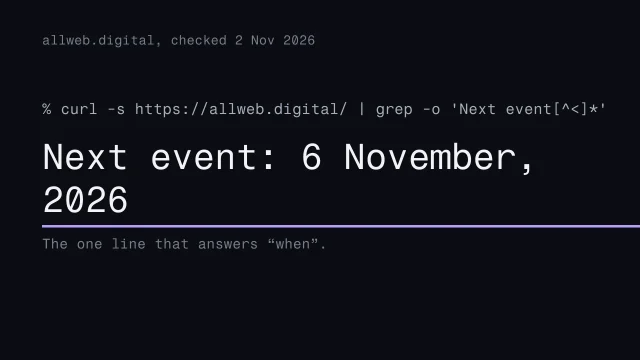
The search snippet comes from the page's description. Fetch it, and it names Mavrovo, Macedonia. This year, the event is in Albania. That's the first sentence a searcher reads. The page title says it's all about digital, with no year and no city. Search engines and AI answers read structured data. Count the event descriptions in this page: zero. So an AI asked when AllWeb is has one line of body text to quote: next event, the sixth of November 2026.

Write each one down: what it says, whether it's right, and the fix, all under the date you checked. The map pin names a mosque, and the venue isn't stated anywhere, so that one is a question for AllWeb. Search results and AI answers change, so date every check, and check again after launch. Plan turns these fixes into the search plan.

Check what search, maps and AI say about the business. Write each with its source and the date, list the fix, and check again after launch.

The audit it extends

Audit an existing site: the eight lenses; this adds what other places say.

Talk to the people who decide

Interview each person who has a say on their own, with the same questions about what actually happened, not what they wish for. When they disagree, write both sides down in their words and leave it open.

What you’ll make

Before you start
The inventory and its questions.
You’ll learn
Interviewing each decision-maker alone with the same questions about what happened, and recording disagreements without settling them.
You’ll make
Interview notes and a record of open disagreements with who decides.
Worked example
The bakery’s interviews: plan settles it, with both of them in the room.
Used next
The brief lists every open disagreement.

Interviews and what’s still open

Ask what happened: “Walk me through your last order.” “Where did your last three customers come from?”

Copy or download your answers before you leave this page.

Promise nobody anything in the room. Say “that’s useful, I’m writing it down”.

Done when each person’s view is in their own words, the disagreement is written as a question, and someone is named to decide it.

More

Carrying it into the brief
  1. List every open disagreement
  2. Name who decides each one
  3. Say what each one blocks
  4. Get the decision in writing
Example project files
A disagreement record (a fictional architecture studio)
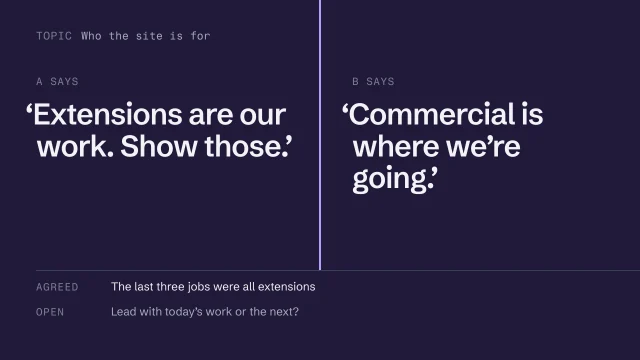
1TOPIC Who the site is for
2A SAYS 'Extensions are our work. Show those.'
3B SAYS 'Commercial is where we're going.'
4AGREED The last three jobs were all extensions
5OPEN Lead with today's work or the next?
6DECIDES Both partners, before the brief is final

From the skill Interview stakeholders who disagree · fictional client

Where yours go: Organize your project, in Prepare.

Full transcript

Two people run the business. They've each got a different website in their head, and each of them is right about something.

Take a fictional architecture studio with two partners. One says the studio does house extensions and the site should show them. The other says extensions pay the bills but the future is small commercial work, and the site should be for that. Both are telling the truth as they see it. Put them in one room and you'll get a polite version of the louder one's view.

So interview each person on their own, with the same core questions, so the answers line up when you compare them. Ask if you can record. If you use an AI tool to transcribe it or pull out quotes, check every quote against the recording, because a paraphrase can sneak in looking like someone's words. Keep the exact phrasing for anything that matters. And tell each person the other is being interviewed too, with the same questions, so nobody feels ambushed later.

Ask what someone wants and you get a wish. Ask what happened, and you get how the business actually works. 'Walk me through your last job, from the first message to the final invoice.' 'Where did your last three clients come from?' Past behavior is harder to dress up than plans. The partner who talks about commercial work may tell you the last three jobs were all extensions, and you'll both learn something.

Ask one more question in every interview: 'If I asked your partner the same thing, what would they say?' It tells you whether they know a disagreement exists, and how they'd describe the other side. Sometimes they describe it more fairly than the other person does. Sometimes they've no idea there's a disagreement at all, and that's worth knowing too.

You'll hear contradictions, sometimes inside a single interview. When you do, ask one neutral follow-up: 'Earlier you said most work comes from referrals. Where did this one come from?' Then stop. You need to know that the disagreement exists, how big it is, and what each person's evidence is. Deciding who's right comes later, and it may never be your call. Write down the exact words of both versions while they're fresh.

It's tempting to reassure people: 'Don't worry, we'll definitely show the commercial work.' Don't say it. A promise to one partner is a decision you've made for both of them, and the other partner will hear about it. Say 'that's useful, I'm writing it down', and write it down.

This is what comes out. Each person's position in their own words. The facts they both agree on, kept apart from the positions. Then the open question, phrased so it can be answered, and who has to answer it. Notice what's missing: any opinion of mine about which partner is right. That might come later, as a recommendation with reasons. It doesn't belong in the record. Keep the record as its own file next to the interview notes, so the brief can point to it.

The record feeds the brief. List every open disagreement near the top, because a brief that hides one falls apart at the first design review. Name who decides each one. Say what it blocks: you can wireframe the contact page while the partners argue about the homepage. And when they decide, get it in writing, with a date, so the decision becomes a source like anything else in the project.

Write the disagreement down. Settling it isn't your job.

Questions that get facts

Gets opinions

  • What should the site say?
  • Who's your ideal client?
  • Do you want online booking?

Gets facts

  • Walk me through your last job
  • How did the last one find you?
  • What happens after an inquiry?

One more for every interview: “If I asked your partner the same thing, what would they say?”

The same step on AllWeb

AllWeb’s redesign had no interviews, because it was speculative: nobody at AllWeb was asked anything. On a commissioned site, this is the next step.

Collect customers’ own words

Read reviews, comments and messages, and copy what customers say word for word, with where each phrase came from. Look for the problem they had, what worried them, what surprised them and what they call the thing they buy.

What you’ll make

Before you start
The inventory (where reviews and messages are).
You’ll learn
Copying customers’ exact phrases with their source, in four kinds (problem, worry, surprise, their name for it), and a words-to-avoid list.
You’ll make
A customer words file and an avoid list.
Worked example
The bakery’s customers’ words: fictional customer words, invented for this example.
Used next
Position and copy.

Customers’ words

Their words, exactly 1
Their words, exactly 2
Their words, exactly 3

Copy or download your answers before you leave this page.

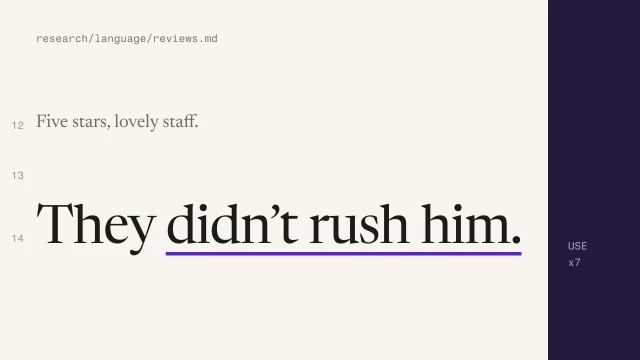
Skip the compliments: “five stars, lovely staff” tells you nothing. Read the three-star reviews too.

Done when you have phrases copied exactly, each with its source, a list of words to keep off the page, and no summaries.

More

Using the words when you write
  1. Read the glossary before writing
  2. Swap company terms for theirs
  3. Give the agent the avoid list
  4. Read headlines against the list
Worked example: a swimming school, from parents’ reviews to a new homepage

“I was worried he'd cry the whole lesson.”

  1. A worry from before they booked. The homepage should answer it on the first screen.
  2. The parent’s words, not the trade’s. A headline in waiting, and an objection to answer.

“Five stars, lovely staff” tells you nothing. Skip the compliments; keep the specifics.

A review of a fictional swimming school.

Read for

  1. The problem, in their words
  2. What worried them beforehand
  3. What surprised them
  4. Their name for the service

Where people say it

  • Map and search listings
  • Booking and marketplace sites
  • Social comments and replies
  • Messages the client shares

Read the three-star reviews too. They’re often the most specific.

The prompt and the glossary file

An extraction prompt
1Read research/language/reviews.md. From each
2review, copy word for word every phrase about
3the problem, the worry before, the surprise, or
4what they call the service. Give the line number
5for each phrase. Don't summarize, reword or fix
6spelling. Save to research/language/phrases.md.
research/language/glossary.md
1USE 'didn't rush him' x7Counted, so it leads
2USE 'finally put her face in' x4
3USE 'teacher's in the water' x3
4AVOID 'drills' (in complaints about others)
5AVOID 'program' (no parent says it)
6FROM research/language/reviews.md

Ask the agent for phrases copied word for word, each with the line it came from, never a summary. Then check a sample against the reviews: a paraphrase can slip in looking like a quote.

What the parents’ words changed on the homepage

What parents said

  1. They didn't rush him7 reviewsPatience is what parents notice. Lead with it.
  2. She finally put her face in4 reviewsProgress comes in small firsts. Name them.
  3. Teacher's in the water3 reviewsA detail parents look for. Show it in the photo.
  4. I was worried he'd cry the whole lessonthe worryAnswer it, with a fact only the owner has.

Keep off the pagedrills program

Still unverified

On the new pageEvidence so farBefore it goes live
“Nobody rushes your child”7 reviews say itThe owner agrees it’s a promise every teacher keeps
The teacher in the water3 reviews mention itThe owner confirms it’s true for every class and level
How a first lesson worksNothing yetThe owner explains it; the page answers the worry with that
A quoted reviewOne reviewThe reviewer’s permission to put their words on the site

Using their words and quoting them need different permissions. Borrowing how parents put things is fine; quoting a review with a name beside it needs a source and, where it’s needed, permission.

What it decides next

  1. The lead message. Patience, in the parents’ own words.
  2. The first objection to answer. Will my child cry the whole time?
  3. A rule for whoever writes the copy, person or AI. Never “drills”, never “program”.
  4. Four questions for the owner before the brief is final.

The phrases and counts come from the skill’s worked example. The homepage in the film is our illustration; nothing here was launched or measured. The counts guide your choices and are never a statistic to publish.

From the skill Mine customer language from reviews · fictional swimming school

Example project files

What a business says about itself, beside what its customers say (a fictional swimming school).

The company says
  • Aquatic confidence programs
  • A supportive environment
Customers say
  • 'They didn't rush him'
  • 'She finally put her face in'
  • 'Teacher's in the water'

A prompt for any agent that can read a file of reviews you’ve collected. It asks for exact phrases with line numbers, so you can check each one.

An extraction prompt
1Read research/language/reviews.md. From each
2review, copy word for word every phrase about
3the problem, the worry before, the surprise, or
4what they call the service. Give the line number
5for each phrase. Don't summarize, reword or fix
6spelling. Save to research/language/phrases.md.

From the skill Mine customer language from reviews · fictional client

Where yours go: Organize your project, in Prepare.

Full transcript

Your client's customers have already written some of the site's best lines. They're in the reviews, in their own words, waiting to be copied out.

A business describes itself in the vocabulary of its trade. Its customers use their own. A fictional children's swimming school says 'aquatic confidence programs'. Its reviews say 'they didn't rush him', 'she finally put her face in', and 'the teacher's in the water'. The second set is what a nervous parent types into a search box.

Collect reviews from wherever customers post them: listings, booking sites, the replies under social posts, and messages the client is willing to share. Read the three-star reviews, which are often the most specific. Check a platform's terms before you automate collecting. And ask the client what people ask on the phone, because that's customer language that never made it into a review.

Pull four kinds of phrase. The problem they had, in their words. What worried them before they booked. What surprised them, good or bad. And whatever they call the service. 'Five stars, lovely staff' gives you nothing. 'I was worried he'd cry the whole lesson' gives you a headline and an objection to answer.

The trap is summarizing. Ask an AI to read two hundred reviews and tell you what customers think, and you get 'parents value the patient approach'. True, and useless, because nobody talks like that. You want exact phrases in quotation marks, each with the review it came from. Then check a sample against the originals, because a paraphrase can slip in looking like a quote. A quote you can't trace is a quote you can't check.

Here's the prompt, run on a file of reviews you've already collected. It asks for the four kinds of phrase, word for word, each with a line number so you can check it in seconds. It also says not to fix spelling, because the customer's odd word is sometimes exactly the one you want.

The glossary keeps two lists. Words to reuse, with a count of how often they come up. Words to avoid: ones customers use when they're complaining, and the company's own terms that no customer ever says. Every phrase points back to the file of collected reviews, so you can show the client where it came from. The counts are for your choices, never a statistic to publish. Keep it short enough to read in a minute. Twenty good phrases beat two hundred.

One boundary. Borrowing the way customers put things, in your own copy, is fine; you're learning their vocabulary. Putting a review on the site as a testimonial, with a name next to it, is a claim and a use of someone's words. It needs a source and, where it's needed, permission. Keep the two in separate files so one doesn't drift into the other.

Then use it. Read the glossary before you write a line of the site. When the draft says 'program', ask what parents call it. When you brief an agent to write copy, give it the glossary file by path and make the avoid list a hard rule. Then read the headlines aloud against the 'use' list. If none of the customers' words survived, the copy has slipped back into the company's voice. The customers' worries are also your questions page.

Write in the customer's words, not the company's.

Where to read, and what to pull

Where customers talk

  • Map and search listings
  • Booking and marketplace sites
  • Social comments and replies
  • Messages the client shares

What to pull

  • The problem, in their words
  • What worried them beforehand
  • What surprised them
  • Their name for the service
The same step on AllWeb

AllWeb’s four public testimonials give names only, no roles or years, so its words file is thin. Write that down; don’t fill the gap.

Map every claim to a source

Copy every sentence that could be checked and found false, word for word, and find its source and date. Give each a status, then keep it, reword it, put a visible placeholder in or cut it.

What you’ll make

Before you start
The inventory and the fact check from Prepare.
You’ll learn
Mapping every checkable claim to a source and a status (verified, client says, conflicting, no source) and deciding keep, reword, placeholder or cut.
You’ll make
The claims list.
Worked example
The bakery’s claims list: “Client says” means confirmed in writing by the owner, and not checked anywhere else.
Used next
Copy, the pre-send gate, and living claims list after launch.

Claims list

Claim, word for word 1
Claim, word for word 2
Claim, word for word 3

Copy or download your answers before you leave this page.

Claims hide in numbers and years, awards and memberships, words like “only”, “first” and “best”, quotes, prices and guarantees.

Done when every claim has a status and a source, and every claim without one is a placeholder nobody could miss or is gone.

More

Example project files
A claims map (a fictional butcher’s)
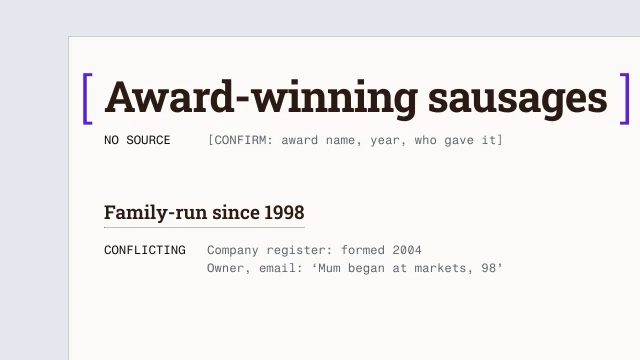
1CLAIM 'Family-run since 1998'
2STATUS Conflicting
3SOURCE Company register: formed 2004
4 Owner, email: 'Mum began at markets, 98'
5ACTION Agree wording both sources support
6CLAIM 'Award-winning sausages'
7STATUS No source
8ACTION [CONFIRM: award name, year, who gave it]

From the skill Map every claim to its source · fictional client

Where yours go: Organize your project, in Prepare.

Full transcript

Every site makes claims, and nobody reads them as claims until something goes wrong. Before this one goes live, you'll know which of them are true.

'Family-run since 1998.' 'Every loaf is baked every morning.' 'We deliver across the neighborhood.' Each of those is a fact someone could check and find false. On a client's site, you're the one publishing it. So before copy is final, every claim gets mapped: what it says, whether it's true, and how you know.

Go through the draft copy, the old site and anything the client wrote, and pull out every claim. They cluster. Any number, any year. Awards, accreditations and memberships. Superlatives, especially 'only' and 'first', which are claims about every competitor too. Quotes and testimonials. Prices and guarantees. Your coding agent can do a decent first sweep if you ask it to list every checkable statement word for word. Then read it yourself, because the quiet ones slip through.

For each claim, the routine is the same. Copy it exactly as written, because rewording it is how a false claim gets softened into one nobody checks. Find its row in your source inventory, which already has a source and a date, or note that there isn't one. Give it a status. Then decide what happens to it: keep it, reword it to what the source supports, replace it with a placeholder, or cut it.

Four statuses do the job. Verified means you have a source you could hand to someone else. Client says means the client confirmed it in writing and you couldn't check it independently, which is often fine for things only they know. Conflicting means sources disagree, and the rule is to leave it out until it's resolved. Don't pick the version you like. No source means a placeholder, or cut it. Put the status next to the claim in the copy file itself, so whoever edits the copy next can see it.

Two rows for a fictional butcher's. 'Family-run since 1998' is conflicting. The company register says the business was formed in 2004. The owner says her mother started selling at markets in 1998. Both can be true, so the fix is wording both sources support, agreed with the owner. 'Award-winning sausages' has no source, so it becomes a visible placeholder asking for the award, the year and who gave it. From there it follows the placeholder route from the lesson on never inventing a fact: onto the client checklist, and searched for before anything is sent.

Rewording is the move people forget. 'The best butcher in town' can't be proven by anyone. 'Trading in the town since 2004' can, and it's more interesting. A customer count with no records behind it goes, and something you can check takes its place. Narrower wording almost always reads as more confident, because it's specific.

No source, no claim. A visible placeholder until there is one.

Rewording a claim so it can be proved

Can't support

  • The best butcher in town
  • Over 500 happy customers
  • Award-winning

Can support

  • Trading in the town since 2004
  • Open six days a week
  • [CONFIRM: award, year]

A placeholder must look wrong: square brackets and a question inside, never a believable guess.

The same step on AllWeb

AllWeb’s brief kept “founded 2012” off the page: a planning document says it, and allweb.digital doesn’t.

Audit the site and its category

Go through the current site one lens at a time, doing what a visitor comes to do on a phone, and grade each finding by what it costs them. Then put competitors’ homepages side by side and write down what they all do.

Also in this task

Find your category's default 3 min

The lesson’s own page, with its transcript

What you’ll make

Before you start
The inventory.
You’ll learn
Auditing the current site one lens at a time with severity by consequence, and finding the category default in a private competitor grid.
You’ll make
An audit with lens, evidence and grade per finding, and the category default in a few lines.
Worked example
The bakery’s audit
Used next
Position, the directions (Design), and the technical baseline.

Audit

The category

Competitor grid

One line per competitor in each box: its name, then what you saw on its homepage.

The current site

Lenses to go through: copy and conversion, accessibility, speed, search, answers in AI tools, brand and positioning, visual design, social proof, the archive, and duplicated content.

Lens 1
Lens 2
Lens 3
Lens 4

Copy or download your answers before you leave this page.

Don’t fix anything yet. Grade by consequence: 4 blocks the site’s main job, 3 costs visitors or trust, 2 is friction, 1 is cosmetic.

Done when every finding has a lens, evidence and a grade, the category default is written in a few plain lines, and you’ve said what to keep and what to break.

More

The eight lenses, in pairs
  • UX and IA: find it, do it
  • Copy and conversion: say and ask
  • Accessibility and performance
  • Technical SEO and legal awareness
Example project files
Audit findings (a fictional clinic)
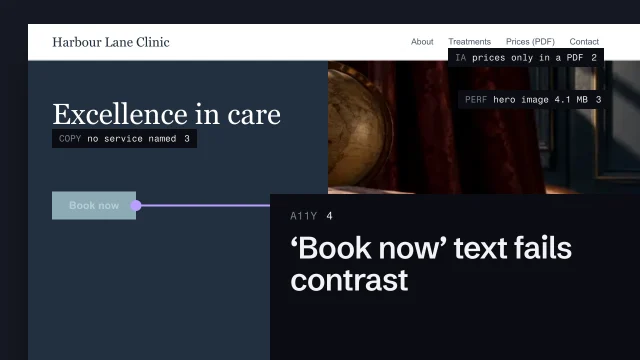
1COPY Hero says 'Excellence in care'; no
2 service named on the first screen 3
3PERF Hero image 4.1 MB; first screen blank
4 for seconds on a phone 3
5A11Y 'Book now' text fails contrast 4
6IA Prices only inside a PDF 2
7TYPE Dated serif in the footer 1

From the skill Audit an existing site · fictional client

A competitor grid (five fictional accountants)
1 HEADLINE PALETTE IMAGE
2Firm A Trusted advisors navy/white handshake
3Firm B Your trusted team navy/teal skyline
4Firm C Expert. Trusted. navy/gold team smile
5Firm D Clarity you trust blue/white handshake
6Firm E Numbers, sorted. green/cream the owner

From the skill Find your category's default · fictional client

Where yours go: Organize your project, in Prepare.

Full transcript

Your first reaction to a client's site is a starting point, and nothing more.

Open a client's current site and you'll have an opinion in seconds: dated, cluttered, dark photos. Note it, but it's your taste, and it skips whatever didn't jump out at you. An audit looks at the same site several times, each time through one lens, so the things you'd never notice on your own get their turn.

I use eight lenses, in four pairs. UX and information architecture: can a visitor find what they came for, and do it? Copy and conversion: what does the site say, and what does it ask people to do, honestly or not? Accessibility and performance: can everyone use it, and how long does it make them wait? Technical SEO and legal awareness: can search engines read it, and is there anything that could land the client in trouble? Legal awareness means noticing, never advising: a cookie banner that does nothing, a missing privacy page. You flag it for someone qualified.

Each pass has the same shape. Pick one lens. Then do the thing a visitor comes to do, such as ordering bread for Saturday, on a phone as well as a laptop, since a small screen exposes problems a desktop hides. Note every finding with its evidence: a screenshot, a URL, a measurement. And don't fix anything yet. The moment you start fixing, you stop seeing.

Severity is about consequence. How much something annoys you doesn't count. Four blocks the site's main job: someone who wants to order bread can't. Three costs visitors or trust. Two is friction people work around. One is cosmetic. A dated font is usually a one, however strongly you feel about it. A booking button some people can't read is a four, even if nobody has complained.

Here's part of an audit of the fictional Harbour Lane clinic. Each finding has its lens, what was seen, and a grade. The contrast failure on the booking button is the only four, because it blocks the one thing the site exists to do. The dated footer font, which was the first thing I noticed, is a one. That's the point of grading: it overrules your first impression with consequences.

Lenses will disagree, and that's useful. The copy pass says the hero photo of the real team builds trust and should stay. The performance pass says it's four megabytes and leaves the first screen blank on a phone. Don't let the louder lens win. Name the conflict, then look for the move that satisfies both: keep the photo, and make the file a fraction of the size. When no such move exists, the site's main job decides.

An agent is good at the gathering part of some lenses. It can list every image over a size you choose, every page without a title, every heading out of order, and save them to the audit file with URLs. What it can't do is grade them for this business. It doesn't know the site's main job unless you tell it, and it will tend to report everything as important. Grading stays with you.

Then turn the list into a decision. Sort by grade. Group findings that share a cause, because five contrast failures from one color are one fix. Pick the few that matter most for the site's main job, and write why, pointing at the evidence. That short list is what the client reads. The full list stays in the project file. For accessibility and performance, specialists go much deeper than this, and the related skills point to their official resources.

Every finding gets a lens, a grade and evidence. Then decide.

Finding the category default

Find your category's default: build the grid, write the default down, then keep it or break it on purpose. A quick check: ask an AI for this kind of business’s homepage with nothing else, and compare its answer with your grid.

Convention: keep it

  • A plumber's number up top
  • Prices where people look
  • A clear 'Book' button

Cliché: question it

  • The handshake photo
  • 'Trusted' in the headline
  • Navy because it's finance

Galleries for seeing what a category looks like are in every resource for Research.

The same step on AllWeb

The real version: an audit of allweb.digital on 5 October, lens by lens, from search and AI answers to conversion. Category grids stay private, as the competitor lesson says; AllWeb’s brief uses two other conferences as principles only.

Find the proof the site already has

List the proof the business already has: its published numbers, talks and archive, unused photos, bios and testimonials. Note where each is now, its source and date, whether it can be shown, and where it should go.

What you’ll make

Before you start
The site audit and the contact sheet.
You’ll learn
  • Proof a business already has: numbers, archive, photos, bios, testimonials
  • Credit a business's own numbers to it
  • Where each piece should go
You’ll make
A proof inventory: where each piece is now, its source and date, and where it should go.
Worked example
allweb.digital: four published numbers on the homepage, 8 talk videos and an archive to 2017, 304 event photos on no live page, bios only on speaker pages.
Check it
Every piece has a source and date and a place it should go.
Used next
Structure plans the homepage sections from this list.

Proof inventory

Proof 1
Proof 2
Proof 3
Proof 4

Copy or download your answers before you leave this page.

Done when every piece of proof has where it is now, a source and date, whether it can be shown, and where it should go.

More

Full transcript

Most businesses already have more proof than their site shows. Before you write a word of copy, find it, count it, and note where it is now. Here's AllWeb's, checked today on the live site and against the audit from October.

Start with the numbers the business publishes about itself. Its homepage shows all four. They're its claims, so they're credited to it, never restated as yours. Then the talks. Eight videos on the homepage today, and an archive going back to 2017. Put each one in the list as you find it, with its source. Then the photos: 304 images in the library aren't on any live page, most of them from the 2022 to 2024 events. That's proof sitting in a folder, usable once its rights are checked. Speaker bios are strong on their own pages, and never reach the homepage. And the four testimonials, names only, are in the page's code twice. Keep each once.

For each piece, note where it is now, its source and date, whether it can be shown, and where it should go. Structure uses this list when it plans the homepage.

Find the proof the business already has: its numbers, its archive, its photos and its people. Note where each is now, its source, and where it should go.

Every claim with its source

Map every claim to its source: the claims list these numbers go into.

Measure the current site before you change it

Before anything changes, record how the old site performs: speed on a phone and a desktop, page weight, an accessibility scan. Write each number with its date, tool and settings, and keep the capture.

What you’ll make

Before you start
The site audit, and the old site still live.
You’ll learn
  • Record speed, weight and an accessibility scan before anything changes
  • Write the date, tool and settings with each number
  • One run is one sample
You’ll make
research/baseline.md: each measure with tool, date, settings, result and capture.
Worked example
allweb.digital, 5 Oct 2026: phone Performance 76, LCP 4.7 s, CLS 0.052; desktop 94; WAVE 51 errors, 12 contrast errors, 20 alerts.
Check it
Every number has a date, settings and a saved capture.
Used next
Test repeats the same checks on the new site and compares.

Baseline

Measure 1
Measure 2
Measure 3
Measure 4

Copy or download your answers before you leave this page.

One run is one sample. In Test, run each check three times with the same settings and keep the middle result.

Done when every number has its date, tool, settings and a saved capture, so the Test phase can run the same check on the new site.

More

Full transcript

Before you change a site, write down how the old one performs. Once the redesign replaces it, nobody can measure the old one again. Here's the baseline for AllWeb's current site, measured on the fifth of October.

Speed first. This report comes from a free speed test, run on a simulated mid-range phone over a slow mobile connection. Performance, 76. The largest thing on the page took 4.7 seconds to appear. Layout shift, how much the page jumps while it loads, was 0.052, which is low. Write the settings down with the numbers: the date, the device, the connection and the tool's version. A number without its settings can't be compared with anything later.

Copy each number into one baseline file, with the capture it came from: speed on the phone and on the desktop. The page weight from the audit. And the accessibility scan's three counts. Each of these is one run, and these tests vary from run to run. So in the Test phase you'll run each three times with the same settings, and keep the middle result. It's a starting line, not a grade.

Before you change anything, record the old site's numbers with their date, settings and capture, so the Test phase can compare like with like.

Running the checks again

The browser’s own tools: Browser developer tools in five minutes.

Comparing before and after in Test: Predict, measure and fix performance.

Put the research on one evidence page

Turn the research folder into one page Plan can start from: what you know, what disagrees, and what you don’t know with who could answer it, every line with its source. Check each AI finding against the real site before it goes in.

What you’ll make

Before you start
The research folder: inventory, claims, audit and baseline.
You’ll learn
  • Known, disagrees, unknown, each line sourced
  • Check each AI finding against the real site
  • Name who could answer each open question
You’ll make
research/evidence.md, one page, every line pointing to its source.
Worked example
AllWeb's page: the event facts from allweb.digital; founded 2012 disputed and kept off; ticket prices after the Early Bird unknown; an AI's 120+ speakers corrected to 120+ partner brands.
Check it
Someone could start planning from this page without opening the others.
Used next
Plan starts from this page.

Evidence page

What we know

What disagrees

What we don’t know

AI findings, checked

Copy or download your answers before you leave this page.

Done when someone could start planning from this page without opening the others, and every line points to the file it came from.

More

Full transcript

Research ends with a folder of good files: an audit, a brief, dated screenshots, a manuscript. Nobody can plan from a folder. So the last research step is one page that says what's known, what disagrees and what's still unknown, with every line pointing to where it came from.

Start with what you know, and name the source on every line. The event: one day, the sixth of November, in Tirana, read on their site. The 2026 speakers: six, with bios and no talk titles yet. The past events, in AllWeb's own published numbers, credited to them. And the starting line for speed, measured on the fifth of October, so the Test phase has something to compare with. Then what disagrees. The plan's manuscript says AllWeb was founded in 2012. Their site never says it, so it stays off the page until someone confirms it. Two documents proposed two different headlines, so the decision, and where it's recorded, goes here too. Then what you don't know, and who could answer it. The ticket prices after the early bird. The 2026 program. The venue's name: the map pin is all there is. On a speculative project, those questions stay open. On a commissioned one, they go to the client.

Last, check what an AI told you. I had an AI audit the old site, then checked each of its findings against the site itself. Some held up, like the video archive being worth more in search. Some were wrong. It said a hundred and twenty speakers and panels, and the site says a hundred and twenty partner brands. And some were invented, like a ticket price and a sold percentage that appear nowhere on the site. A finding isn't true because an AI said it, or because two of them did. It's done when someone could start planning from this page without opening the others. That's where the Plan phase begins.

End research with one page: what's known, what disagrees and what's unknown, every line with its source. Check every AI finding against the real thing before it goes in.

Where the lines come from

Claims and their sources: Map every claim to its source.

The audit it summarizes: Audit an existing site.

Write a SWOT, every line sourced

Map the competitors at the level of the business, then write strengths, weaknesses, opportunities and threats, each line with its source. End every line with what the site will do about it.

What you’ll make

Before you start
The evidence page, the audit and any competitor research, with dates.
You’ll learn
  • Map competitors at the level of the business
  • Strengths and weaknesses are inside; opportunities and threats are outside
  • Every line cites its source and ends in what the site will do
You’ll make
swot.md: a competitor map and a SWOT, every line sourced.
Worked example
AllWeb's: real history as allweb.digital publishes it, so lead with proof; proof spread over site, social and video, so gather it; bigger events compete for attention (an inference, marked), so tickets always one move away.
Check it
Every line has a source, and every line ends in a decision.
Used next
Plan's positioning starts from these lines.

SWOT

Competitors

SWOT

Copy or download your answers before you leave this page.

Done when every SWOT line cites a file or a dated source and ends with what the site will do.

More

Full transcript

Research gives you facts. A SWOT turns them into a few calls the site has to act on: what to lead with, what to fix, what to use, and what to watch. Do one on every project, and make every line point at where it came from.

Start with the other events, at the level of the business. This research is from October, and it says so: it isn't presented as how their sites look today. Web Summit makes the ticket path obvious and uses its scale for urgency. The next one sells the experience of being there. OFFF lets art direction carry the event. SXSW shows its long history. Then the line that matters: where AllWeb can win. A focused one-day event for the region, not a smaller Web Summit. Strengths and weaknesses are about AllWeb itself. Its history is real, in AllWeb's own published numbers. Its talks are on video back to 2017. The weakness: that proof is spread across the site, social channels and video. And on the fifth of October, no talk titles were out yet. Opportunities and threats come from outside. Gather the talks and photos into one archive, and answer when and where first, for search and for AI answers. The threat: bigger events with clear ticket paths compete for the same attention. That one is an inference from the research, and the line says so.

Every line ends with what the site will do about it. Those lines are where Plan starts.

Do a SWOT on every project. Build it from your research, cite a file or a dated source on every line, and end each line with what the site will do.

The competitor grid

Find your category's default: the homepage-level grid. Keep it private.