Prepare

Start here, and eight phases later you’ll have a live website you’ve checked against your brief, plus every document behind it.

0 / 11 complete

Starts with
A computer, An AI tool, A project in mind
Produces
Project folder, Previews, Standing instructions, Decision log
Feeds into
Research

Production Checklist

  1. Video, 1:23 Introduction to Prepare Introduction
  2. Video, 2:03 Decide whether anyone asked for the site Makes: Project type
  3. Video, 2:03 List your tools and who owns each account Makes: Accounts list
  4. Video, 3:27 Keep secrets out Makes: Secrets checklist
  5. Video, 3:12 Make your own decisions first Makes: Decision note
  6. Video, 1:36 Organize your project Makes: Project folder
  7. Terminal basics Optional
  8. Video, 1:38 Save your work before changes Makes: Save point
  9. Video, 3:39 Use Git as a checkpoint before an AI agent changes your build Optional
  10. Video, 1:41 Give AI clear project instructions Makes: Project instructions
  11. Video, 4:12 Keep your project in files the AI can read Optional
  12. Video, 1:34 Give each AI one job Makes: AI roles
  13. Video, 2:31 Review before approving Makes: Reviewed plan
  14. Video, 3:28 Verify claims before publishing Makes: Fact check
  15. Video, 1:22 Open a local preview at three widths Makes: Local preview
  16. Video, 3:35 Browser developer tools in five minutes Optional

Terminal basics

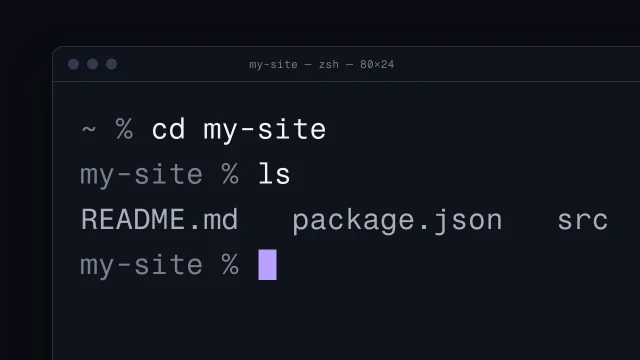
Open a terminal, move around a project and run a command without fear.

Official resource · MDN (Mozilla)

Command line crash course

Use Git as a checkpoint before an AI agent changes your build

Make a save point before an agent touches your work, and get back to it.

More

Full transcript

An agent can change forty files before your tea's gone cold. Afterwards there's one question that matters. Can you get back to where you were?

Git does a lot. To start with, you need one part of it: the commit. A commit is a snapshot of every file in your project, at a moment you chose, with a message you wrote. That's your save point. Here it is on a real project: the site for the course's fictional bakery, with a terminal on one side and the site in a browser on the other.

Here's the routine, every time an agent is about to change the build. Check that nothing is uncommitted. Commit, with a message that says where you are. Let the agent work, and ask it to commit its changes as one commit when it's done. Then review that commit before you believe a word of the summary. If it's right, keep it. If it isn't, revert it.

First, check that nothing is waiting to be saved. Git status lists what's changed since the last save. Here, it's the Visit page, where I've just added the Sunday hours. So save it, with a message that says where you are. This is the checkpoint: everything as it is right now, before the agent starts on the order page. Run git status again. Nothing to commit. The working tree is clean, so whatever happens next can be undone.

The agent builds the order page and commits it on its own. In this demo its edits are scripted, so they're the same every time. In the browser, the new page works. Then it changes the footer, again as its own commit. Reload the home page. Visit has gone, and Order appears twice. Follow the old link to the Visit page, and there's nothing there.

Reviewing doesn't mean reading every line of code. Ask the agent for the list of files it changed, or look at the commit yourself. Does each file make sense for the task? Was anything deleted that you didn't ask to delete? Then open the page and look at it. If you can't explain why a file changed, you haven't finished reviewing.

So look at what that footer commit actually did. Git show, with stat and summary, lists every file it touched. Five pages changed, which you'd expect for a footer. And one line says delete mode, visit dot html. Nobody asked for that.

Going back is less frightening than it sounds. Git revert makes a new commit that takes the footer change out, and the original stays in the history. So reverting destroys nothing. Going back this way is exact. Asking the agent to tidy up by hand is another round of changes you'd have to check. Reload. The footer is back. The Visit page opens again, with the new Sunday hours from the checkpoint. And the order page is still there, because it was its own commit.

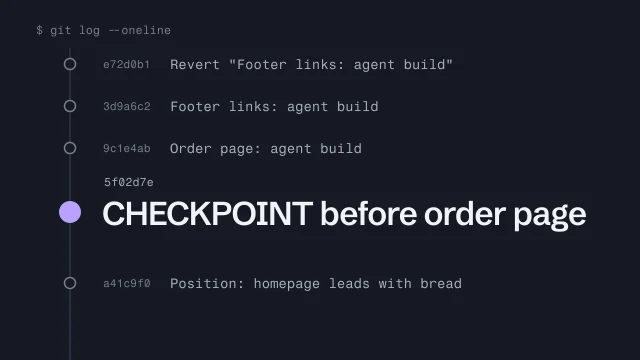
Now read the history from the bottom. The homepage. The checkpoint, so I know exactly what to return to. The agent's order page, reviewed and kept. The footer change, and its revert. Now picture forty commits all called update. When something breaks, you'd be scrolling through them trying to remember which one was safe.

Many AI tools have their own rewind or undo. It's good for a quick step back inside a session. But check what yours covers: some don't track files changed by commands, and their snapshots aren't kept for ever. A commit covers every file, however it changed, and stays in your history. So commit anyway.

Commit before the agent starts. Then every change is one you can take back.

Browser developer tools in five minutes

Open the console, network, styles and responsive view, and read what each tells you.

More

Full transcript

You click plus on the bakery's order page, and nothing happens. The page looks fine, so looking harder won't tell you why. The browser can. Every desktop browser has developer tools built in, and four of their panels answer most questions.

Right-click anywhere on the page and choose Inspect. Or press F12, or on a Mac, Option, Command and I. A panel opens beside the page, and the page gets narrower to share the window. The tabs along the top are the tools.

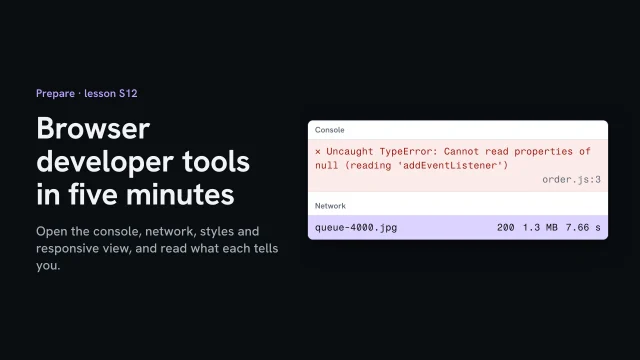
Choose Console, then reload, because it only records what happens while it's open. One red line: Uncaught TypeError, cannot read properties of null. On the right, the file and the line: order.js, line three. Red lines are errors. Yellow ones are warnings, often harmless. You don't need every word. It says line three tried to use something from the page that wasn't there, which is why plus does nothing. Copy it exactly, file and line included, into your message to the AI. Once it's fixed, reload again. The console is empty, and plus adds a country loaf, at eight fifty.

Now the home page. Open Network and reload. Every file the page asked for is a row: the page, the stylesheet, the photo and two fonts. Read three columns. Status two hundred means it arrived, and four oh four means it's missing. Size is how much came down. Time is how long it took. This copy runs on my computer, so everything arrives at once. Set throttling to a slow phone connection, keep the cache off, and reload. Now the photo, one point three megabytes, takes seven point six six seconds. Everything else is done in under a second and a half.

To see why something looks the way it does, right-click it and choose Inspect. Here, the Place order button. Its code is selected in Elements, and the button is outlined on the page. Below it, Styles lists every rule that applies, with its file and line. The background comes from the button rule, at styles.css line forty-seven. It doesn't name a color. It says var, action: a named color, set somewhere else. Computed shows what the browser actually used: R G B thirty-one, seventy-seven, fifty-eight. That's the awning green, set once on line nine. So you can name the line, instead of asking for a greener button. You can try edits here too, and they're gone when you reload.

Last, the responsive view: the device button beside the tabs. Type a width. At three seventy-five, the home page lays itself out as it would on a phone that wide. Hover the photo in Elements. It's shown three seventy-five by one sixty-four, from a file four thousand by seventeen fifty. That's why it was the heavy row in Network. It's a width, not a phone: your computer's speed, a mouse instead of a finger. Use it to find problems quickly, then check the finished page on a real phone.

Write down what each panel told you, in its own words: the file and line, the size and time, the rule, the width. That's evidence the AI can act on, and that someone else can check.

Open the tools before you ask. The console says what broke, the network what loaded, the styles which rule won, and the responsive view what the width does.

Keep your project in files the AI can read

Keep a project in files so every AI session starts from what you already decided.

More

Full transcript

You spent an hour agreeing the tone of voice with the AI. Tomorrow you open a new session and it's forgotten every word.

That's how these tools work. Anthropic's docs put it directly: each Claude Code session begins with a fresh context window. Codex rebuilds its instructions from your AGENTS.md files every time it starts. What carries over is what's in your project's files. So the habit is easy to say. Anything you'd be annoyed to explain twice goes in a file, in the project folder, under Git. The brief. The decisions. The facts still waiting on the client. Chat is where you work things out. The file is where the answer lives.

Here's a fictional bakery project. The brief says what the site is for. The decisions folder holds one short dated file per decision, so you can see when and why. Claims lists every fact on the site with its source. The AI log is the one from the first lesson in this stage. The build sits in its own folder. None of this needs to be clever. It needs to exist, with names you'd guess.

CLAUDE.md is the file Claude Code reads at the start of every session. Codex reads one called AGENTS.md, and Claude Code can read that too. Keep it short. Anthropic suggests under two hundred lines, because long files get followed less. Put in where things are kept, the rules it keeps breaking, and the checks to run before it says it's finished. Point to the brief instead of pasting it in. And use their test on every line: would taking this out cause a mistake? If not, cut it.

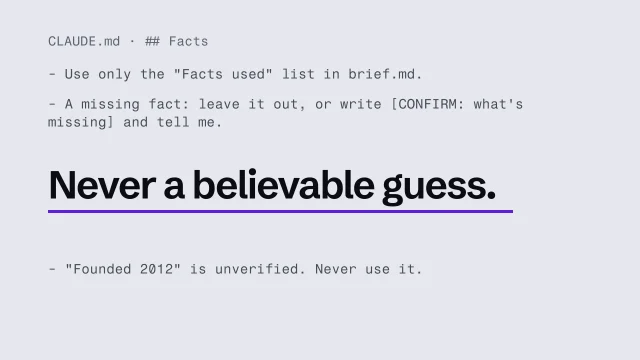
A few lines from that file. Notice how little it explains. It says where the brief is and when to read it. It says where facts come from and what to do when one's missing. It tells the agent not to quietly reverse a decision that has a file. And it lists what it must never do on its own, like changing prices. Every line is there because something went wrong, or would have.

When you ask for work, point at files by path. Use the tone we agreed means nothing to a session that wasn't there. Follow decisions slash tone dot md does. In Claude Code you can type an at sign and the file name, and it reads the file before it answers. Pasting the brief into chat works once. Pointing to the file works every time, and when the brief changes there's only one copy to update.

So end every session the same way. Ask for the decision in a file. Something like: write what we agreed about the menu page into decisions slash menu dot md, with today's date and the reason. Read what it wrote, because it will sometimes record a tidier version of the conversation than the one you had. Correct it. Commit it. Then the next session, or you in three weeks, starts from the decision rather than the chat that produced it.

Files have one more property chats don't. They build on each other. The homepage copy was written from the brief. The order page was built from the copy. So when the client changes the brief, those files are suspect, even though nothing in them has changed. Write it down. A line at the top of each file that depends on it, or a decisions entry: brief changed on this date, copy needs checking. Then check it, or note why it still holds. Don't expect the agent to notice. It works from what's in front of it.

If it isn't in a file, the next session doesn't know it.

Introduction to Prepare

Starts with
A computer, An AI tool, A project in mind
Produces
Project folder, Previews, Standing instructions, Decision log
Feeds into
Research

Decide whether anyone asked for the site

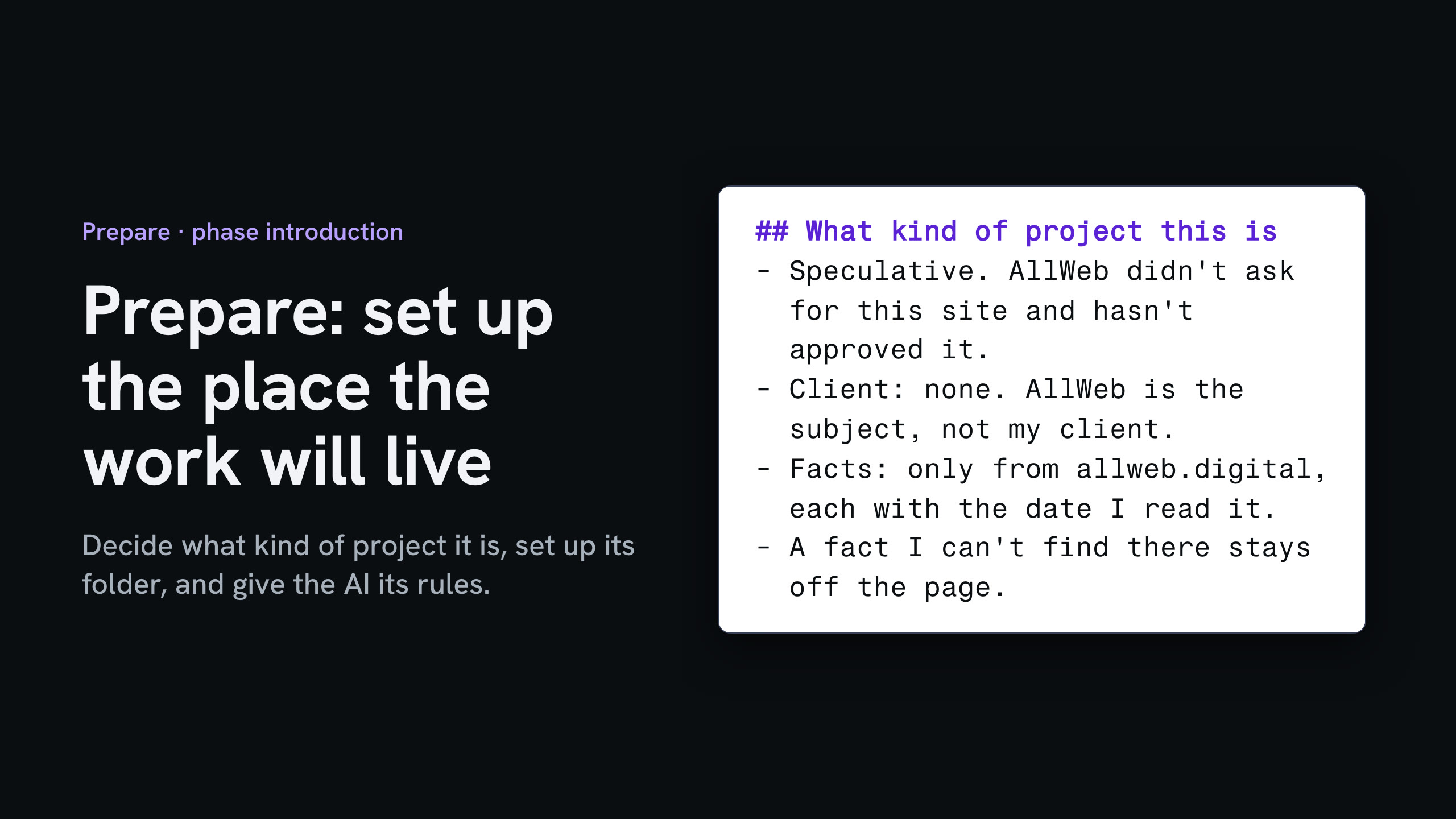
A client who asked for the site can answer your questions and decides when it goes live; if nobody asked, you only have what’s public. Write down which it is, and what that changes.

What you’ll make

Before you start
A project in mind, and whether anyone asked you for it.
You’ll learn
  • What changes when nobody asked: who made it, where facts come from, search, the address
  • Writing those rules where every AI session will read them
You’ll make
The first lines of the project's instruction file: kind of project, client, fact source, the line every page carries, search and address.
Worked example
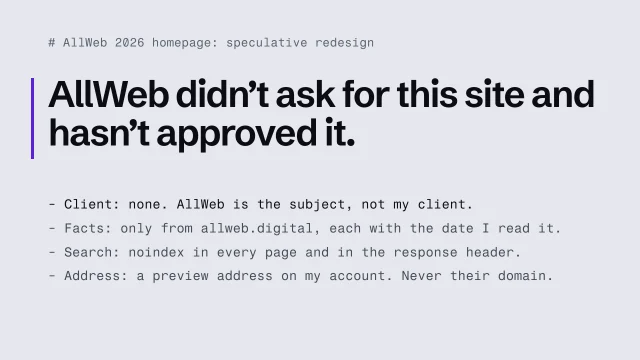
AllWeb's redesign is speculative: every page says it's a concept by Annie Vickrey, not affiliated with or commissioned by AllWeb, and it stays out of search.
Check it
Open the live page: the credit line is there, and the page and its header both say noindex.
Used next
The tools and accounts list, and later the instruction file, start from these lines.

Project type

Copy or download your answers before you leave this page.

Done when your project’s instructions say what kind of project it is, who the client is, where facts may come from, the line every page carries, and how it stays out of search.

More

Full transcript

In October I redesigned the homepage of AllWeb, a one-day conference in Tirana. Nobody asked me to. That one fact shapes the whole project, so it's the first thing to decide and write down.

A commissioned site is one a client asked for. The client answers your questions, confirms facts in writing, and decides when it goes live. A speculative site is one you make before anyone asks, to show what you'd do. There's nobody to ask, and nobody has approved it.

Being speculative changes four things. First, every page says who made it. The footer here reads: concept redesign by me, not affiliated with or commissioned by AllWeb. Second, facts come only from what the business has published, each with the date you read it. My brief lists every fact I used, all from their own site, read on the fifth of October. An earlier draft said they were founded in 2012. Their site never says that, so it stayed off the page. Third, it stays out of search. The page carries a noindex tag, and the server sends the same rule in its header. Both are checked here on the live site. Fourth, it lives at a preview address on my own account, and the page names that address as its own. It never goes on their domain, because launching is their decision, and they haven't made it.

Now write it where every AI session will read it: the first lines of the project's instruction file. What kind of project it is, who the client is, where facts may come from, the line every page carries, and the rules for search and the address. If a client had asked, the same lines would name them. They'd say who confirms the facts. And they'd say the site goes on the client's domain when the client approves it. Building a speculative demo safely has its own lesson, on spec work.

First decide whether anyone asked for the site. If nobody did, say who made it, use only dated public facts, keep it out of search, and never put it on their domain.

Building the demo itself

Spec work without the risk: a speculative demo that nobody can mistake for the business’s own site, claims or search result.

List your tools and who owns each account

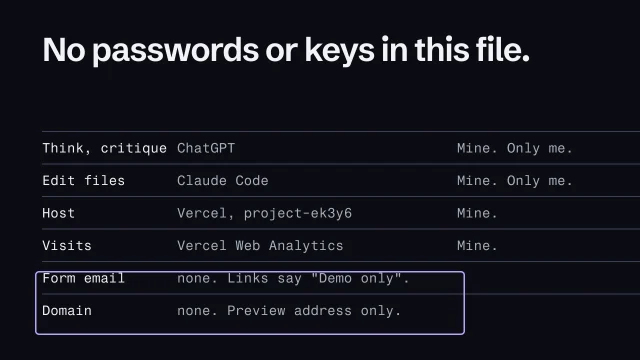
Name the jobs first: thinking and critique, editing files, history, hosting, counting visits, form email, the domain. Then write which tool does each, whose account it is and who can log in, with no passwords.

What you’ll make

Before you start
The project type, and the tools you plan to use.
You’ll learn
  • Name the jobs before the products
  • Production accounts belong to the client
  • No passwords or keys in the list
You’ll make
accounts.md: each job, its tool, whose account it is and who can log in.
Worked example
AllWeb's list: an AI chat and a coding agent on Annie's accounts, the host project-ek3y6, the host's analytics; no form email and no domain, both written down.
Check it
Every job has a line or a written blank, and the file holds no password or key.
Used next
The handover in Improve moves every login on this list to the client.

Accounts

Job 1
Job 2
Job 3
Job 4

Copy or download your answers before you leave this page.

Never write a password or key here.

Done when every job has a line with its tool, whose account it is and who has access, the blanks are written down, and no password or key is in the file.

More

Full transcript

Before you build anything, write down your tools and accounts: what each one is for, whose account it is, and who can get in. It takes ten minutes now. It saves a hunt for logins at the end.

Start with the jobs, not the products. Something to think with and argue with. Something that edits the files. A history of every change. A host that serves the site, a way to count visitors, a way to send form email, and a domain. Products change every few months. The jobs don't. Then write what does each job on this project, one line each: the job, the tool, whose account it is. On my AllWeb redesign, an AI chat did the thinking and the critique. A coding agent edited the files, and the host serves a preview.

Check each line against the project, not your memory. The host's project name comes from the project's own link file. The visit counter is loaded by the site's script. And the site sends no form email at all: eighteen lines in the page are marked demo only. So two jobs have no tool, and the file says so: no form email, and no domain. A blank you wrote down is a decision. A blank you forgot turns up at launch.

This site is speculative, so every account is mine. When a client commissions a site, the host, the domain, the analytics and the form email are opened in the client's name, and you're invited in. If they sit on your account, the client's site depends on yours. Write down who holds each login, and the handover at the end is a list, not a hunt.

One rule for this file: no passwords and no keys. Keys live in a local file that never goes into history, and the project's ignore list already keeps it out. The lesson on secrets shows the rest.

Name the jobs, then the tools. Put every production account in the client's name, write down who holds each login, and never put a password in the file.

Keys, and handing accounts over

Keep secrets out of chats, repositories, files and deployments: where keys go instead of this file, and what to do when one gets out.

Hand the site over: the same list at the end of a project, when every login moves to the client.

Keep secrets out

Keep every key and private note out of AI chats, the project’s history, the files you put online and anything a visitor can see; keys live only in the host’s settings. If one gets out anyway, replace it, turn the old one off and check that it’s refused.

What you’ll make

Before you start
Your tools and accounts list, and a project with save points.
You’ll learn
  • The four ways a key gets out: AI chats, the project’s history, the files you put online, the live site’s settings
  • Where a key belongs: the settings of the server that uses it
  • Replacing a key that got out, and proving the old one is refused
You’ll make
A secrets checklist: each key by name, what it unlocks, where it lives and who can see it, and what happened to any that got out.
Worked example
The bakery’s order-form key lives in the host’s settings; the test key that went into a page script was replaced and the old one refused.
Used next
Build keeps keys in the host’s settings; the handover in Improve moves them to the client.

Secrets checklist

Where secrets could get out

If a key gets out

Key or private file (its name) 1
Key or private file (its name) 2
Key or private file (its name) 3

Copy or download your answers before you leave this page.

Write a key’s name here, never its value.

Done when every key is listed with where it lives, none is in a chat, the project’s history or a public file, and any key that got out has been replaced and the old one checked as refused.

More

Full transcript

The bakery's order form now uses a key, a password that lets the site's server talk to the form service. Anyone who has it can send as the bakery. Keys and private notes get out four ways: AI chats, the repository and its history, the files you upload, and the settings on the live site.

Here's the first way. Orders are failing, and you're about to paste the whole settings file into an AI chat. Stop. A chat keeps what you send on someone else's servers, and you can't take it back. Send the error and the setting's name instead. The AI doesn't need the value to help. The same goes for screenshots, logs and the owner's emails.

In the project, the key lives in one file, dot env, and the server reads it by name. The code is clean, but Git will save that file with everything else. Git status lists it, with the notes folder, waiting to be added. Add both to the gitignore file before your first commit, and check again: they're gone, and check-ignore names the line that hides each. Commit a dot env example with the names and no values, so the next person knows what to set.

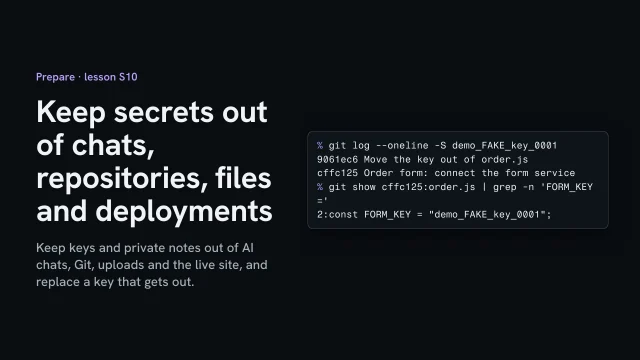
Now the one that catches people. Try it with a test key: one commit put it straight into the page script, and the next took it out. The file looks clean. But Git keeps every version: search the history for the key, and both commits come back, with the key still in the old file. Once that history is pushed, assume someone has a copy. You can rewrite history, but you can't recall copies, so treat the key as leaked and replace it.

The gitignore file protects the repository, not the upload. Deploy the whole project folder, and the host serves everything in it: the owner's emails, and the key. So deploy from a list. A short build step copies only the files named in site files into one folder, and only that folder goes online. A file you add later stays private until you list it. Ask for the notes and the dot env file again: four-oh-four, both.

That's also why a form works on your computer and fails live. The dot env file never left your machine, so the live server starts without the key. Put it in the host's settings, where the server reads it when it starts, and the same order goes through. Build-time settings are different again. Some build steps write any setting marked public into the files they make, so it ships to every visitor. Fine for a site address, never for a key. Search the built folder for the key: after a clean build, nothing.

When a key has been in a chat, a commit or a public file, don't guess who saw it. Replace it. Make a new key at the service, put it in the host's settings, then turn the old one off. Here the service is a local stand-in. Then prove it. The old key is refused, the new one is accepted, and a test order goes through. Then write down which key, where it was exposed, when you replaced it, and how you checked. Checking the finished page for keys is in the review build and pre-send gate lessons.

A key is safe in one place: the settings of the server that uses it. Keep it out of chats, history and uploads, and replace any key that gets out.

Where a setting lives
  • Your computer: the .env file
  • The host: its settings page
  • Build time: written into files
When a key gets out
  1. Make a new key
  2. Put it in the host's settings
  3. Turn the old key off
  4. Check the old key is refused
  5. Write down what happened

Make your own decisions first

Before you ask AI for an answer, write down your own. Then compare it with AI’s suggestion and record what you chose.

What you’ll make

Before you start
Nothing: this is the first task. A question that needs judgment, and an AI chat.
You’ll learn
Why you write your own answer before asking AI, the order you, evidence, AI, you again, and keeping an AI log of what it got wrong.
You’ll make
A dated decision note (your view, evidence, what you’re unsure of, AI’s suggestion, what you chose) and an AI log entry.
Worked example
The bakery’s homepage decision: written on 6 October.
Used next
Every later decision; the AI log feeds the project instructions as rules.

My decision

Open questions

Keep one list for the whole project. Add a question the moment it comes up, in any phase, and give it an answer and a date when it closes.

Question 1
Question 2
Question 3

Copy or download your answers before you leave this page.

Done when you’ve written your own decision, compared it with AI’s suggestion, and recorded what you chose.

More

Practice (optional): five minutes, same bakery

One decision, before and after

The same bakery also sells bread to a few cafés. Should wholesale get its own page in the site's menu?

  1. Show an AI suggestion

    A prepared example of what an AI might say (not a live AI)

    Yes. Give wholesale its own page with a price list, minimum order sizes and a trade order form. Cafés expect a dedicated trade section, and it signals that you're an established supplier.

  2. Compare the two

    • Which of its reasons rests on something the owner actually told it?
    • What does it add that nobody has confirmed? (Prices, minimums, an order form.)
    • Did it raise anything you hadn't thought of that's worth checking?

Nothing you type here is saved or sent anywhere. Reload the page and it's gone.

Example project files
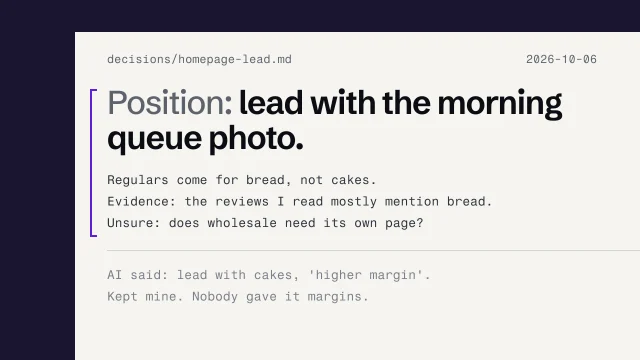
decisions/homepage-lead.md 2026-10-06
1Position: lead with the morning queue photo.
2Regulars come for bread, not cakes.
3Evidence: the reviews I read mostly mention bread.
4Unsure: does wholesale need its own page?
5
6AI said: lead with cakes, 'higher margin'.
7Kept mine. Nobody gave it margins.
log/ai-log.md
12026-10-06 homepage copy
2Said: 'family-run since 1998'.
3Source: none. Not in anything the client sent.
4Caught: checked every fact against claims.md.
5Fix: [CONFIRM: founding year], added to checklist.

The second file is an AI log: one line each time the AI gets something wrong, and how it was caught.

From the skill Decide first, then ask the AI · fictional client

Full transcript

Ask an AI what a client's homepage should lead with, and you'll have a fluent answer in seconds. Once you've seen it, it's hard to think past it.

So before I ask the AI anything that needs judgment, I write my own answer down. What the homepage is for. Which photo leads. A few lines, in a file, with a date on it. It can be wrong, and it usually needs adjusting. But it exists before the machine's version does, and that changes how I read the machine's version.

The order matters. First you, with your position written down. Then the evidence: what the client sent, what a search turns up. Then the AI. Then you again. Put the two answers side by side and decide. Where you agree, move on. Where you differ, one of you knows something the other doesn't, and your job is to find out which.

This is one for a fictional bakery. Regulars come for bread, not cakes, so the position is the morning queue photo. Then the evidence, and what I'm unsure about. Don't skip that line. It tells you where the AI might actually help. Below it, after the AI has answered, what it said and what I did. It wanted to lead with cakes because they carry a higher margin. Maybe they do. But nobody gave it any margins. It made up a reason that sounded commercial, so my answer stood, and the file says why.

Look at the two habits side by side. Ask first, and you're editing its draft. You argue with its headings and its order, and you rarely step outside them. Decide first, and you're comparing two drafts, one of them yours, and every disagreement turns into a question you can check. Make a save point with the position file before you open the chat, and your version history shows you decided first. When a client asks how much of the work the AI did, you can show them.

Sometimes the AI will be right and you'll be wrong. That's part of why you asked. Change your mind, and add a line to the position file saying what changed it. Sounding confident doesn't count as a reason. The other half of the habit is a log, one file, where every time the AI is wrong or sure about something it couldn't know, you write down what it said and how you caught it. After a few weeks you'll see patterns. Maybe it keeps inventing dates, or reaches for the same layout every time. Each pattern becomes a rule in the project file it reads at the start of every session.

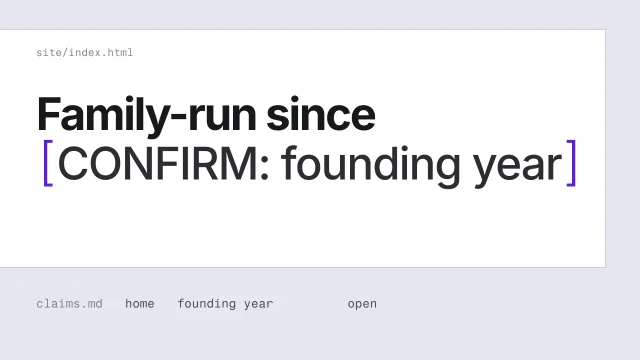
An entry looks like this. The AI wrote family-run since 1998 into the bakery's homepage copy. Nothing the client sent mentions 1998. It sounded right, and that's how a line like this gets through. I caught it because I check every fact against a source, and this one had none. So it became a placeholder and a question for the client.

Write your answer down first. Then ask.

If you own, make or teach this site
If you own or pay for the site
You decide what the site says and which facts are true. Ask to see the file where those decisions are written, and the save point taken before the AI started.
If you make it
You set up the folder, the standing instructions and the save points. Read every plan the AI proposes before it touches a file.
If you teach it or run a program
Have learners write their own answer before they ask the AI. Then check whether they can point to every guess on a draft.
The same habit on a real project

On AllWeb, an AI’s audit of allweb.digital was checked line by line against the site before anything went into the brief (5 October). Some of its points were wrong, and one example price was invented.

Organize your project

Keep the brief, your decisions, your facts and a log of AI mistakes in one place. Folders, a shared document or your builder’s project space all work.

What you’ll make

Before you start
The project type and accounts list.
You’ll learn
  • One place each for brief, research, plan, decisions, AI log and site
  • Copy real files in; add no facts
  • Leave secrets out
You’ll make
A project folder someone else could find their way around.
Worked example
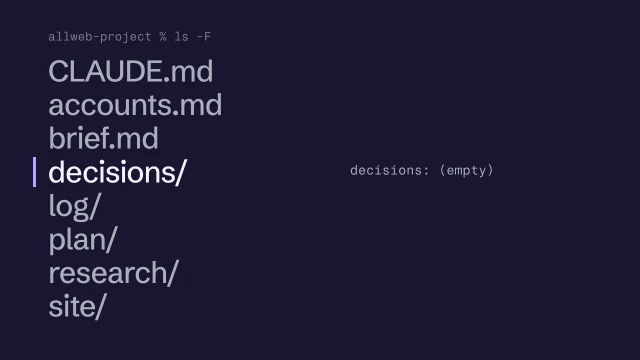
allweb-project: CLAUDE.md, accounts.md, brief.md, decisions/, log/, plan/, research/, site/, with no secrets file.
Check it
Someone else can find the facts, the decisions and the site without asking you.
Used next
The next task saves a first version of this folder.

My project

What this build teaches me

Pick one discipline to push harder than the rest on this site, and say now how you’ll review it.

Copy or download your answers before you leave this page.

Done when your brief, decisions, facts and AI log are all in one place that someone else could find their way around.

More

Example project files

As folders and files. CLAUDE.md is where one AI builder (Claude Code) reads its instructions; yours may keep them somewhere else.

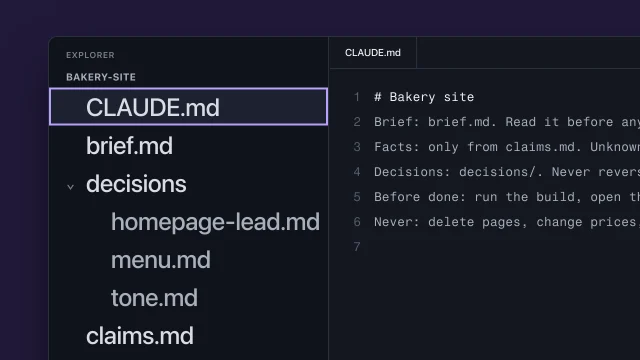
bakery-site/
CLAUDE.md
how to work on this project
brief.md
goals, audience, the one action
decisions/
one dated file per decision
claims.md
every fact and its source
log/ai-log.md
what the AI got wrong
site/
the build

In the glossary:

the project folder, where every file about the site lives

In the glossary →, , .

From the skill Keep your project in files the AI can read · fictional client

Full transcript

Here's my AllWeb project as it sat on my computer: the site, a component lab, the photos, two long documents, and three screenshots with machine-made names. It works while you're in the middle of it. Now ask where the next person would find the facts, or the decisions, and there's no clear answer.

Give each kind of file one place, and make the folders first: research, with every fact's source, a plan folder for what you decide to build, decisions, one short dated note each, and a log of what the AI got wrong. Then the files that sit at the top: the instruction file and the accounts list from the last two lessons, and the brief. Now copy the real files in, without rewriting anything or adding a fact. The audit and the three dated screenshots go into research. The manuscript goes into plan. The site goes in whole, except the secrets file and the host's link folder.

Now list it. Brief, research, plan, decisions, log and site, plus the instruction file and the accounts list. The decisions folder is empty, and that's honest: the first note goes in with the first call you make. And no secrets file came along. The same layout works as folders on your computer, as a shared document with these headings, or as a builder's project space. What matters is that someone else could open it and find the facts, the decisions and the site without asking you.

One place for each kind of file: the brief, research, plan, decisions, the AI log and the site. Copy the real files in, add nothing, and leave secrets out.

A real one: the AllWeb project folder

The bakery’s folder is drawn above. The video lays out a real one, Annie’s AllWeb redesign: brief, research, plan, decisions, AI log and site, with the secrets file left out. Keeping keys out of the folder and its history: Keep secrets out of chats, repositories, files and deployments.

Other resources

If your builder runs in a terminal: Terminal basics, enough to move around a project and run one command.

Save your work before changes

Before AI changes anything, save a version you can go back to. Name it for what works, so a bad change is easy to undo.

What you’ll make

Before you start
The project folder.
You’ll learn
  • Save before every AI change, named for what works
  • Look at the result, then keep it or go back
  • Go back once on purpose
You’ll make
A named save point and one successful restore.
Worked example
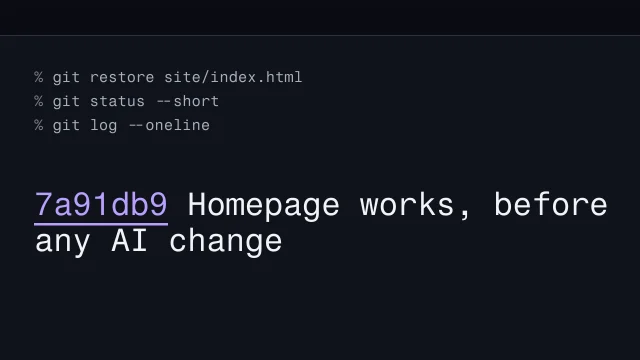
7a91db9 Homepage works, before any AI change; a trial headline was undone with git restore, and the page matched the saved version exactly.
Check it
You've gone back to a save point once and the project matched it.
Used next
Every change in Design, Build and Test starts from a save point.

My save point

Copy or download your answers before you leave this page.

Save it with your builder’s version history or checkpoints, as a dated copy of the project, or with version control if you use it.

Done when you’ve saved a version before a change, and gone back to an earlier one once to check you can.

More

Example project files

Shown as Git history, one kind of version history. Any builder’s history reads the same way: newest first, each version named.

Version history
1$ git log --oneline -5
2d8f13bb Revert "Footer links: agent build"
3371267c Footer links: agent build
486ec1dc Order page: agent build
5567a71d CHECKPOINT before order page
61e8956c Homepage: queue photo first

From the skill Use Git as a checkpoint before an AI agent changes your build · fictional client

Full transcript

Before an AI changes anything in your project, save a version you can go back to. Then let it work, look at the result, and keep it or go back. Here's that habit on the AllWeb project folder from the last lesson.

The simplest save point works with any tool: a dated copy of the whole folder, named for what works. To go back, you open the copy. The build phase uses version control, so start it here. Keep secrets out from the very first save. Then make the folder a repository and save every file, with a message that says what works right now. Now a change. Here it stands in for an AI's edit: the hero headline swapped for an earlier line I'd considered, ideas worth leaving your screen for. Git status shows the one file that changed. Look at it in the preview before you decide. It works. But I chose the current line over this one in October, and seeing it again doesn't change my mind. So go back. Going back takes one command, and it undoes only what changed since the save. Git status is clean, and the reloaded page matches the saved version exactly.

Do that once on purpose, now, so you know it works before you need it. And name every save point for what works, not update. Three changes later, homepage works tells you where to go back to. The lesson on Git checkpoints shows the full routine when an agent saves its own work.

Save a version before every AI change, and name it for what works. Look at the result, keep it or go back, and go back once on purpose so you know you can.

Git tutorial (4 min)

Optional. The task works the same in any tool. Transcript

The routine in Git

  1. Check nothing is uncommitted
  2. Commit a named checkpoint
  3. Agent works, then commits
  4. Review the agent's commit
  5. Keep it, or revert it

Give AI clear project instructions

AI doesn’t remember your project between sessions. Write down what it needs every time, and put it where your builder will see it.

What you’ll make

Before you start
The project folder and the brief.
You’ll learn
  • What goes in: the job, fact source, missing-fact rule, decisions, checks, never list
  • Point to files instead of pasting them
  • Test it on a fresh session
You’ll make
CLAUDE.md, AGENTS.md or your builder's project instructions.
Worked example
AllWeb's CLAUDE.md: speculative, facts only from the brief's list, founded 2012 never used, one display size, never remove the credit or noindex.
Check it
A fresh session, asked what the project is, answers from the file.
Used next
Every builder session in Build reads it first.

Project instructions

If a fact is missing, write [CONFIRM: what’s needed] instead of guessing.

Copy or download your answers before you leave this page.

Put it in your builder’s project instructions or knowledge, a document it can read, the start of each chat, or an instructions file it reads.

Done when your AI builder sees your instructions at the start of every session, and they say what the site is for, where facts come from and what AI must never do.

More

Example project files

Kept as a CLAUDE.md file, which Claude Code reads at the start of every session. Other builders have their own place for project instructions.

CLAUDE.md
1# Bakery site
2Brief: brief.md. Read it before any copy work.
3Facts: only from claims.md. Unknown = [CONFIRM: …]Unknown facts become markers
4Decisions: decisions/. Never reverse one silently.Decisions live in files
5Before done: run the build, open the preview.
6Never: delete pages, change prices, add reviews.Hard limits, read every session

From the skill Keep your project in files the AI can read · fictional client

Full transcript

Every new AI session starts with no memory of your project. What carries over is a short file it reads first. Here's the one for the AllWeb project, written from its brief.

Start from the brief, but don't paste it in. It's a hundred lines on type, color and photos. Take only what the AI needs every time, and point to the rest. So, the job in two lines, and where the full brief is. Then the fact source, and the rule for a missing fact: leave it out, or mark it to confirm and say so. Name the claim you've already refused, so it can't sneak back. Decisions already made, so nobody reverses them quietly: the headline, the two typefaces, one display size, the photo rules. Then the checks before it says done: look at the preview at three widths, and check the credit and the noindex are still there. Last, a never list, short and specific.

Now test it. Start a fresh session, say nothing first, and ask what the project is. It answers from the file: speculative, the fact source, the refused claim, the never list. If it gets something wrong, fix the file, not the chat. Each builder reads this from its own place. A terminal agent reads a file like this one in the project folder. A chat builder has a project instructions box. The words are the same. The lesson on project files covers two agents in detail.

Write the file every session reads first: the job, the fact source, decisions, checks and the never list. Keep it short, point to files, and test it on a fresh session.

Claude Code and Codex tutorial (4 min)

Optional. The task works the same in any tool. Transcript

Give each AI one job

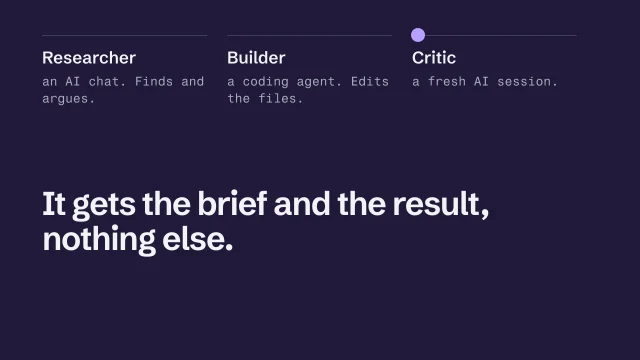
The AI that built a page will defend it, so split the work: one AI researches and argues, one builds, and a fresh session critiques with only the brief and the result. You decide between them.

What you’ll make

Before you start
The project instructions.
You’ll learn
  • Why the builder shouldn't grade its own work
  • Researcher, builder and critic as separate sessions
  • The critic gets the brief and the result only
You’ll make
A Roles section in the instructions and a saved critic prompt.
Worked example
AllWeb: an AI chat researched and critiqued, a coding agent built; critic-prompt.md gives a fresh session brief.md and the live page at three widths.
Check it
The critic prompt contains no build history or builder notes.
Used next
Test runs the critic prompt on the finished site.

AI roles

Copy or download your answers before you leave this page.

Done when your project instructions name each role, and a critic prompt that gets only the brief and the result is saved in the project.

More

Full transcript

The AI that built a page will tell you it's good. It wrote it, it remembers why, and it grades its own reasons. So split the work: one AI to research and argue, one to build, and one to critique cold.

On the AllWeb redesign I split it like this. An AI chat did the research, argued strategy with me, and came back later as the critic. A coding agent did the building. Write that into the instruction file, so each session knows its job, and what isn't its job. The researcher brings a source for every claim. The builder edits files and doesn't grade its own work. The critic is a fresh session with the brief and the result, nothing else.

The critic is the one people skip. Give it the brief and the live page, and nothing from the build: no chat history, no list of what the builder meant to do. If it has the builder's reasons, it agrees with them. Ask where the page fails the brief, line by line, and tell it to say when it can't check something. Save it in the project, beside the instructions. You'll use it in the Test phase, on the finished site.

Three AIs don't make a decision. When the critic and the builder disagree, you settle it, and you write your own answer before you ask either of them.

Give each AI one job: research, build or critique. The critic sees the brief and the result, never the builder's reasons, and you decide between them.

Before and after this

Writing your own answer first: Decide first, then ask the AI.

Using the critic on the finished site: Get an honest AI review.

Review before approving

Read what AI plans to change before you approve it, and take out anything you didn’t ask for. Check the result before you keep it.

What you’ll make

Before you start
Project instructions and a save point.
You’ll learn
Reading an AI’s plan as a list of decisions, striking steps you didn’t ask for, reading permission prompts, and checking the result.
You’ll make
A review of one plan: steps kept, steps struck, result checked.
Worked example
The bakery’s review of its Order Ahead plan: the plan’s five steps are under More, “Example project files”.
Used next
The builder brief’s plan approval.

My review

Before I approve

Before I keep the change

Copy or download your answers before you leave this page.

Done when you’ve read a plan before approving it, removed anything you didn’t ask for, and checked the result before keeping it.

More

Example project files

The plan as one AI coding tool wrote it, with file names. In other builders a plan reads as a list of changes.

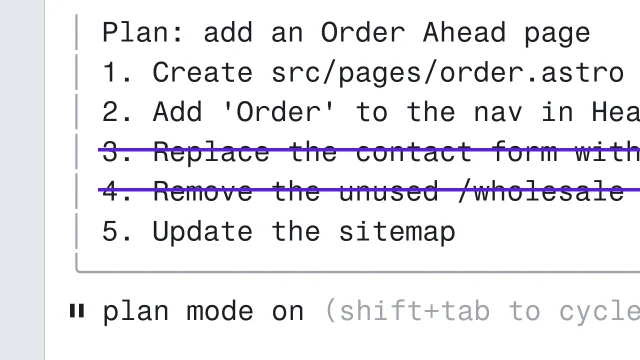
Plan: add an order page
11. Create order.html, the order page
22. Add "Order ahead" to the menu
33. Replace the contact form with an order form
44. Remove the wholesale page (looks unused)
55. Add the order page to the sitemap

From the skill Steer a coding agent with plan mode and Esc · fictional client

Full transcript

An agent that can edit your files and run commands will happily do both for twenty minutes in the wrong direction. Keep the decisions yours.

Start every session by checking whether your agent asks before it acts, or acts and tells you afterward. Most agents have a setting for this, and some don't ask by default. Know which one you're in before you hand it anything big.

When should you ask for a plan first? If you could describe the change in one sentence, just ask. Fix this typo. Rename this heading. But if it touches several pages, or you aren't sure how it should be done, or anything might be deleted or moved, ask for the plan first, and read it before anything changes.

Here's a plan for the bakery site, from the day the agent drafted the order page. Read it as a list of decisions, because that's what it is. Steps one, two and five are what I asked for. Step three replaces the contact form, and I never asked for that. Step four deletes the wholesale page, because the agent thinks nobody uses it. Those two lines are decisions dressed up as tasks, and they aren't the agent's to make. So send the plan back, and say exactly what to leave alone. The revised plan has three steps, and every one of them is yours.

When it asks permission to run something, read the request the same way. What's the command? Which path does it touch? Is that path inside this project? Did I ask for this? This one deletes a folder outside the project, and nothing you asked for needs that. Say no, and ask for a plan instead.

If you can see it heading the wrong way, stop it, mid-turn, and redirect it. But stopping isn't undoing. The three files it changed before you stopped it are still changed. Undoing is what your save point is for, and that's the next lesson.

The last decision is when to throw the session away. Every session carries everything said in it, including the wrong turns. Start fresh when you move to an unrelated task. Start fresh when you've corrected it twice on the same thing and it's still wrong, because by then the conversation is full of failed attempts. And once a plan is agreed and saved to a file, a fresh session can build from the file with nothing else in its way.

Know which mode you're in, and read the plan before you approve it.

Reading a permission prompt
  1. What is the command?
  2. Which path does it touch?
  3. Is that path in this project?
  4. Did I ask for this?
Do I need a plan for every change?

No. Just ask when you can say the change in a sentence. Plan first when it touches several pages, or when anything could be deleted or moved.

Verify claims before publishing

AI writes facts that sound right but may be made up. Check each one against a real source, and mark anything you can’t confirm.

What you’ll make

Before you start
A project folder.
You’ll learn
What counts as a fact on a website, why AI writes them anyway, the [CONFIRM: …] placeholder and its route, and searching the build for brackets before anything ships.
You’ll make
A fact check: every fact, where it appears, its source, confirmed or ask the client.
Worked example
The bakery’s fact check
Used next
Research’s claims list continues it; the pre-send gate searches for leftover markers.

Fact check

Fact 1
Fact 2
Fact 3

Copy or download your answers before you leave this page.

To find the facts, ask AI: “List every fact on this page: numbers, dates, names, prices, quotes and awards. For each, say where it came from, or write NONE. Don’t change anything yet.”

Done when every name, date, number, price and quote on the page has a source, and anything without one is marked and on your list for the client.

More

Example project files
claims.md
1home founding year open
2home opening hours client email, 3 Oct
3about head baker's training 2 sources disagree
4 omitted, asked client
5order delivery radius open
A believable guess, and what goes on the page instead
A believable guessA visible placeholder
Family-run since 1998[CONFIRM: founding year]
Over 2,000 happy customers[CONFIRM: customer count]
A five-star quote, no nameNo reviews section yet

No placeholder survives to a page anyone can open. Before launch, the owner answers each one, or the sentence comes out.

From the skill Never invent a fact · fictional client

Full transcript

The most dangerous sentence on a draft site is the one that sounds right. Over two thousand happy customers. Where did that come from?

Start by knowing what counts as a fact on a website. Numbers. Reviews and testimonials. Prices. Credentials, awards and certifications. Founding dates, names, addresses, opening hours. If a reader would trust the business or act because of it, it's a fact, and it has to come from somewhere you can point to: the client, or something the client sent you. The AI writes these easily, because sites like this usually have them. That's why they turn up in drafts nobody asked for.

When you don't have the fact, you have two options and only one of them is honest. A guess reads well, and nobody notices it's wrong until a customer does. A placeholder is ugly on purpose. Square brackets, the word confirm, and what you need. It looks unfinished because it is. Reviews are different. No placeholder makes a made-up quote acceptable, so leave the section out until real ones arrive.

Every placeholder takes the same route. You write it into the page. You add it to the client checklist, with the page it sits on. The client answers, and you note where the answer came from. Then you swap the placeholder for the real fact. The checklist is also the list of what's blocking launch, and you can send it to the client as it stands. Always use the same brackets and the same word, so one search finds every one of them.

Here's the checklist for a fictional bakery. Open items, closed items, and where each answer came from. Look at the head baker's training. Two sources gave different accounts. When sources disagree, don't pick the one that sounds better. Picking one is still a guess, just a guess with a link next to it. Leave it out and ask. When the evidence runs out, say less.

Your coding agent can help you find them, as long as it isn't the one deciding. Give it a prompt like this. List every fact on the homepage, and for each one give the line in claims dot md it came from, or write none. Then you go through every claim marked none. Each one gets a source from the client, becomes a placeholder, or comes out. Don't let it fix them on the same pass. You want the list first, so you can see what it was about to invent.

A placeholder only works if it never reaches a page people can visit. I've seen a live client site go out with unfilled brackets where the legal entity name should have been. In one way that's worse than a guess, because everyone can see it. So the last check before any send or launch is a search of the whole build. Zero results, or it doesn't go.

Here's that search, on the fictional bakery build. The first one looks for the confirm format and finds nothing. Good. The second looks for any lowercase words inside square brackets, because a placeholder someone typed their own way slips past the first search. It can also catch code that happens to use brackets, so read each hit. This one is real: the legal name on the About page. That page doesn't ship until it's filled.

If you can't trace it, it doesn't go on the page.

What to do with a fact you can’t confirm
  1. Write [CONFIRM: what you need]
  2. Add it to the client checklist
  3. Client answers; note the source
  4. Replace it with the real fact
The same rule on a real project

AllWeb’s brief kept “founded 2012” off the page: a planning document said it, and allweb.digital never does.

Open a local preview at three widths

Run the site on your own computer, on a port that belongs to this project, and look at it at 1280, 768 and 375 wide every time something changes.

What you’ll make

Before you start
The project folder with the site in it.
You’ll learn
  • Run the site locally on its own port
  • Why ports collide
  • Look at 1280, 768 and 375 every time
You’ll make
A preview you start with one command, with its address and port written down.
Worked example
AllWeb's site on localhost:4637, recorded in .claude/launch.json beside 4641 and 5612; a second preview on the same port silently moved to 59220.
Check it
Headline, date and ticket button are on the first screen at all three widths.
Used next
Design, Build and Test judge every change in this preview.

My preview

Copy or download your answers before you leave this page.

Done when one command (or your builder’s preview button) starts the site, its address and port are written down, and you’ve looked at it at all three widths.

More

Full transcript

Everything you decide from here on, you'll judge in a preview: the site running on your own computer. So start one now, and give it a port of its own.

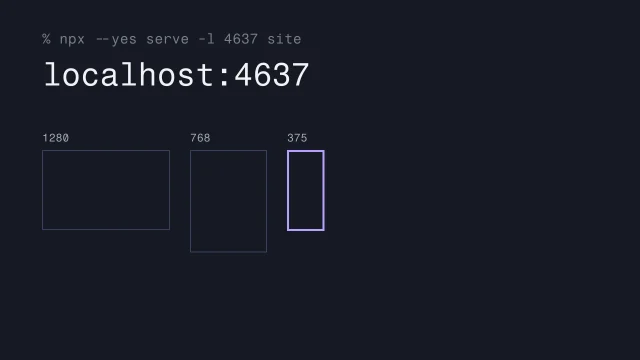
The AllWeb project has three previews, and each has its own port, written in the project's launch file: the site on 4637, a photo grading review on 4641, and a component lab on 5612. Start the site's preview with one command. It answers at localhost, on port 4637. Here's why the port is written down. Start a second preview on the same port, and this tool quietly takes a random one instead. With two projects open, your bookmark shows whichever one got there first.

Now open it and look at three widths. 1280, a laptop. 768, a tablet. 375, a phone. At each one, check that the headline, the date and the ticket button are on the first screen. Three widths are for looking, not testing. The Test phase sweeps every width in between. The lesson on browser tools shows the responsive view used here.

Run the site on your own computer, on a port of its own, and look at 1280, 768 and 375 every time you change something.

The browser’s tools, and every width

The responsive view used here: Browser developer tools in five minutes.

Testing every width, not three: Test responsive behavior across every width.